GoCharting Sim Trader
GoCharting offers two simulated trading options under the app store:
- Sim Trader (Browser): This connects to a local simulation, storing your trading data on your computer. It replicates the trading methods of real brokers, as explained earlier.
- Sim Trader (Server): A more advanced version of the simulator that saves your positions on the server. When connected, you will be assigned a demo account (e.g., demo123). Click “I agree” to connect.
Once connected, you can create multiple trading accounts with advanced settings. Below is an overview of the available features:
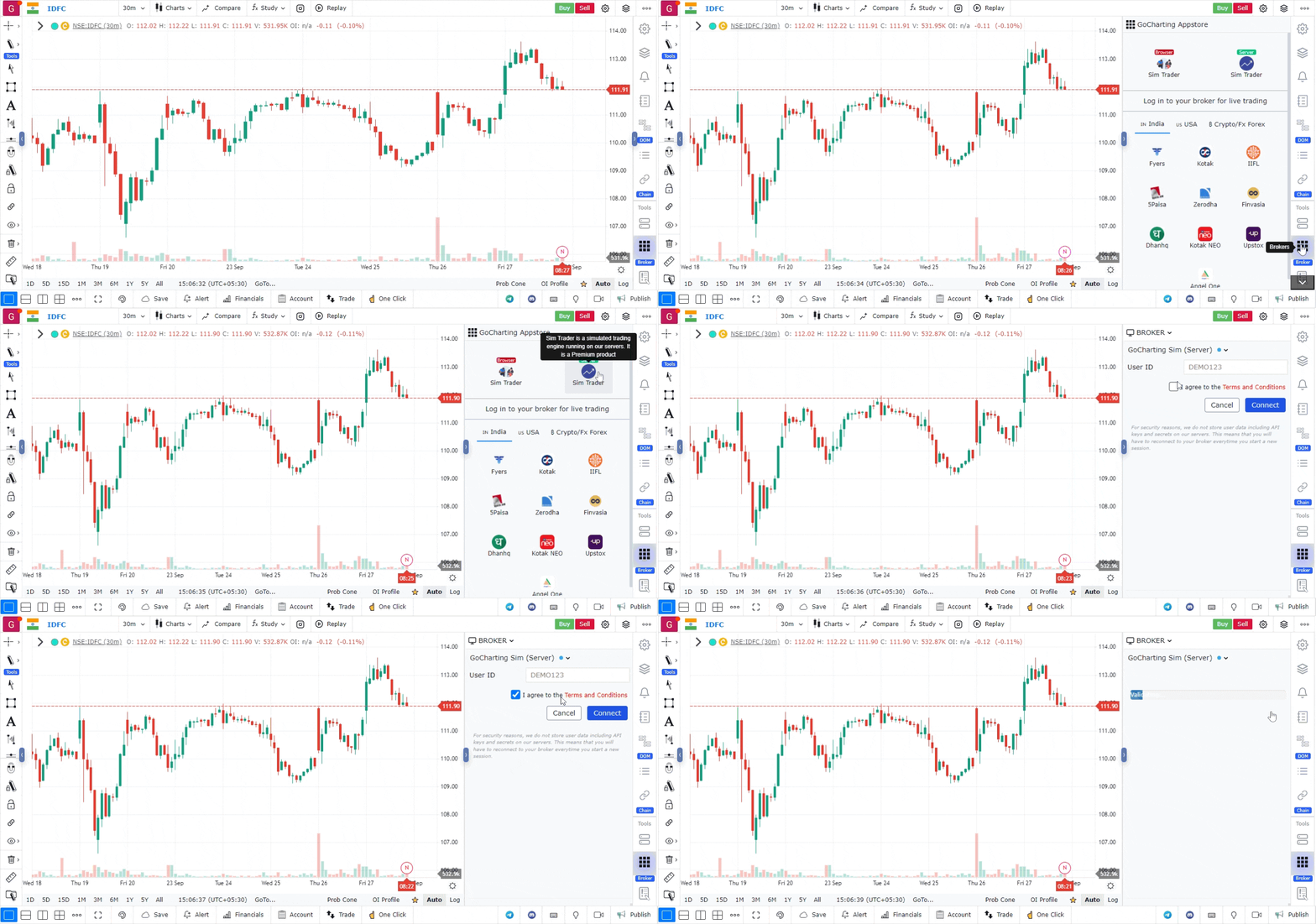
Features:
- Reset All Trades: Resets all trade data for your account.
- Choose Account: Select an existing account.
- Delete Account: Delete a selected account.
- Create New Account: Configure a new trading account with the following settings:
- Account Name
- Currency Type
- Broker Commission (fixed, percentage, or a combination)
- Initial Balance
- Risk Management: Set rules like allowed trading days, trading sides, max daily profit/loss targets.
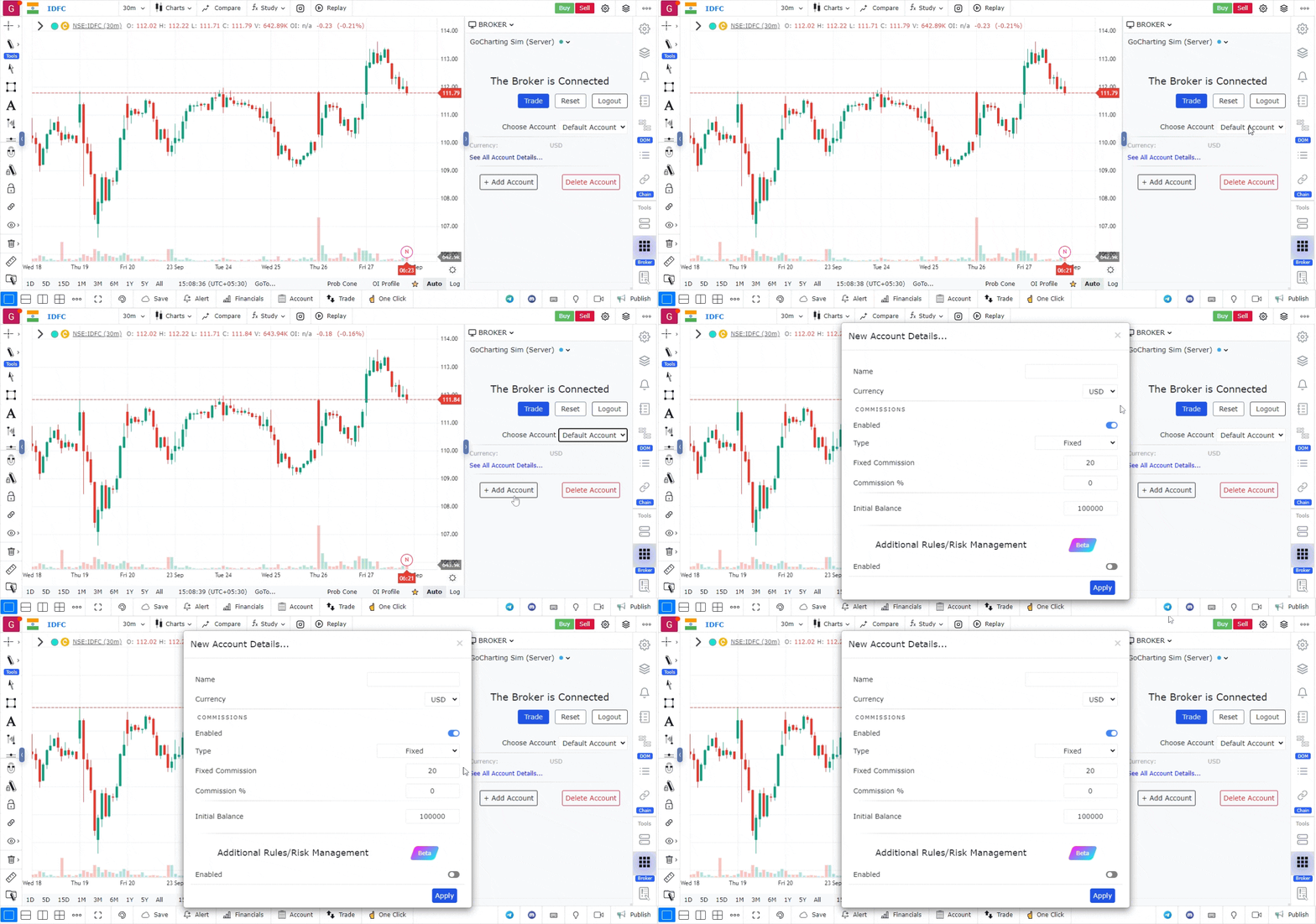
Account Section
After your trades are executed, you can monitor them in the account section located in the bottom bar.
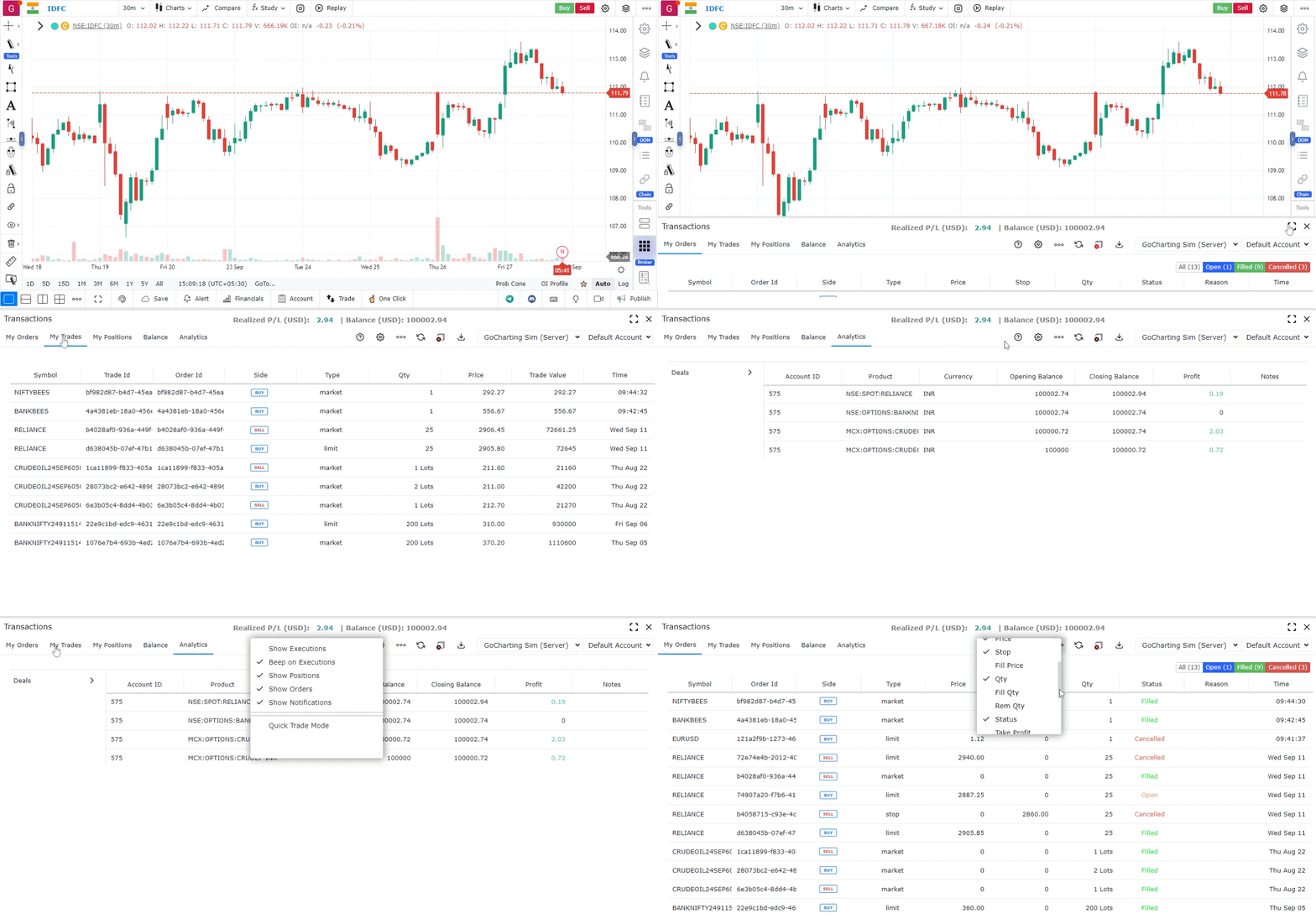
Account Section Options:
- My Orders: Shows all open and executed orders. You can adjust columns and enable the “Reason” column to understand rejections.
- My Trades: Displays details about all executed trades.
- My Positions: Lists open and closed positions.
- My Balance: Shows your account balance.
- Holdings: Displays the stocks you are holding.
- Trade Settings: Allows you to modify trade-related settings like show executions, beep on executions, etc.
- Field List: Customize which columns to display in the account view.
- Connected Broker Information: If multiple brokers are connected, you can switch between them, but note that only one broker can handle orders at a time.
This completes the overview of connecting with brokers and using trading features on GoCharting.
Use Case
GoCharting’s Simulation Trader enables full paper trading — entering, managing, and exiting simulated positions on live price feeds without risking real capital. It is the essential tool for testing new strategies and building execution confidence before going live.
Strategy
Use Sim Trader to run at least 50-100 full trade cycles of any new strategy before committing real capital. Treat every Sim trade with the same discipline you would apply to live trades — set stops, follow your rules, and record every trade in a journal. This is the only way to get accurate data on your strategy’s performance.
Common Mistakes
Do not use Simulation Trader casually without treating it as real money. Avoid skipping the journaling step in Sim trading — the records are how you build confidence based on evidence rather than assumption. Do not go live with real capital after just a few successful Sim trades; statistical significance requires a meaningful sample size.