DOM Trading in GoCharting
GoCharting provides a powerful DOM (Depth of Market) trading feature, allowing traders to interact with pending limit orders efficiently. This tool is especially beneficial for quick trading and is favored by many professionals worldwide.
DOM Features
-
Adjust Market Depth with Steps
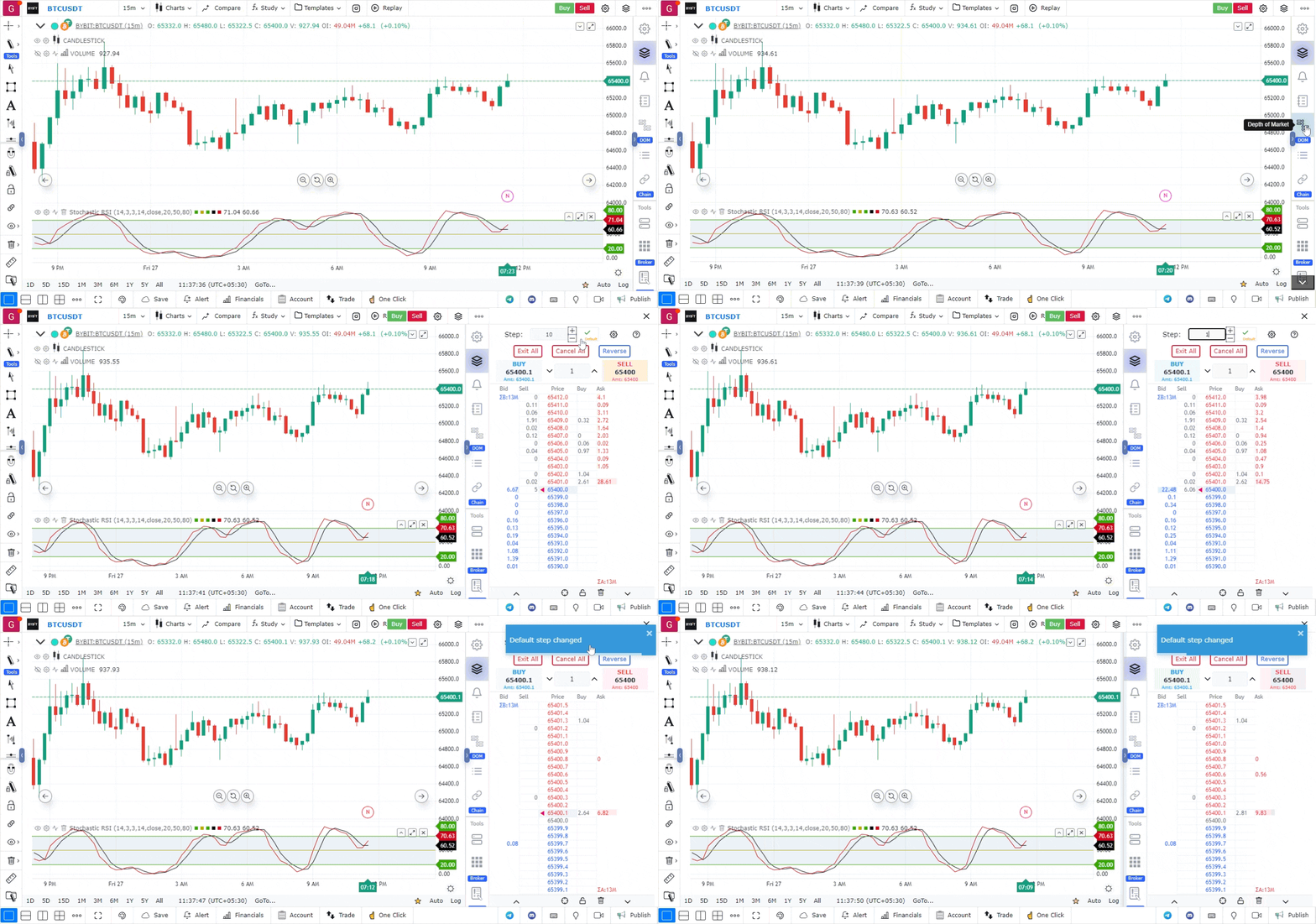
- You can modify the price difference on the bid or ask side by adjusting the step size at the top of the DOM. Decreasing the steps will show more market depth, while increasing them will reduce depth. Steps essentially represent the tick size of the data.
-
Trading from DOM
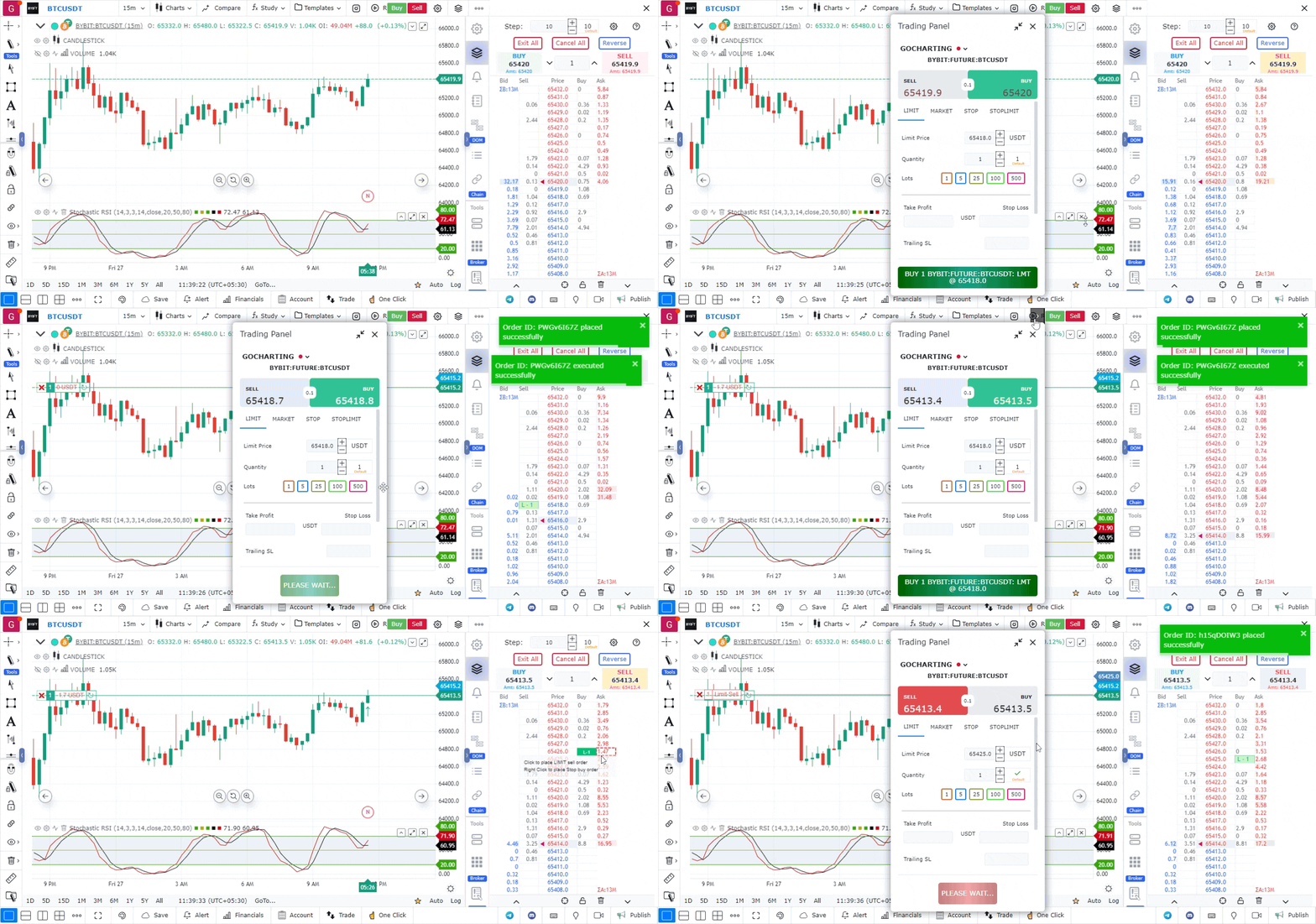
- Execute trades directly from the DOM interface.
- To place a market order, simply click the buy or sell button. You can adjust the quantity from the options available.
- To place a limit buy or sell order, click on the desired bid or ask price level.
- For stop-limit orders, right-click on the bid or ask price level.
- Utilize the bulk action buttons at the top to exit all positions, cancel all orders, or reverse positions.
-
Adjust View
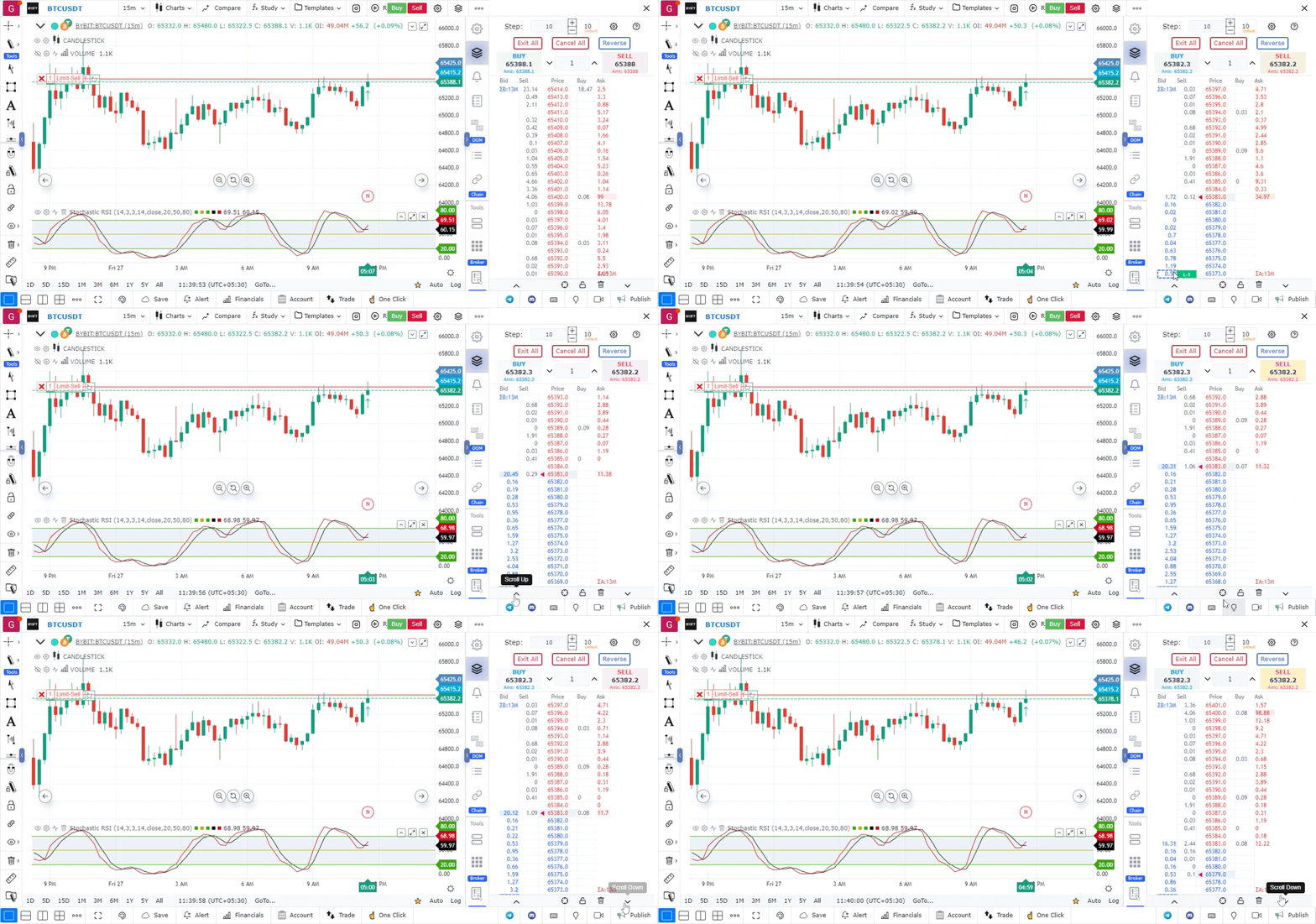
- The DOM can be scrolled up or down, or centered using the provided buttons. You can lock the view with the lock option at the bottom.
- The Bid Column displays pending buy orders.
- The Ask Column shows pending sell orders.
- The Sell Column tracks market sell orders from the moment you open the DOM.
- The Buy Column tracks market buy orders from the moment you open the DOM.
-
DOM Settings
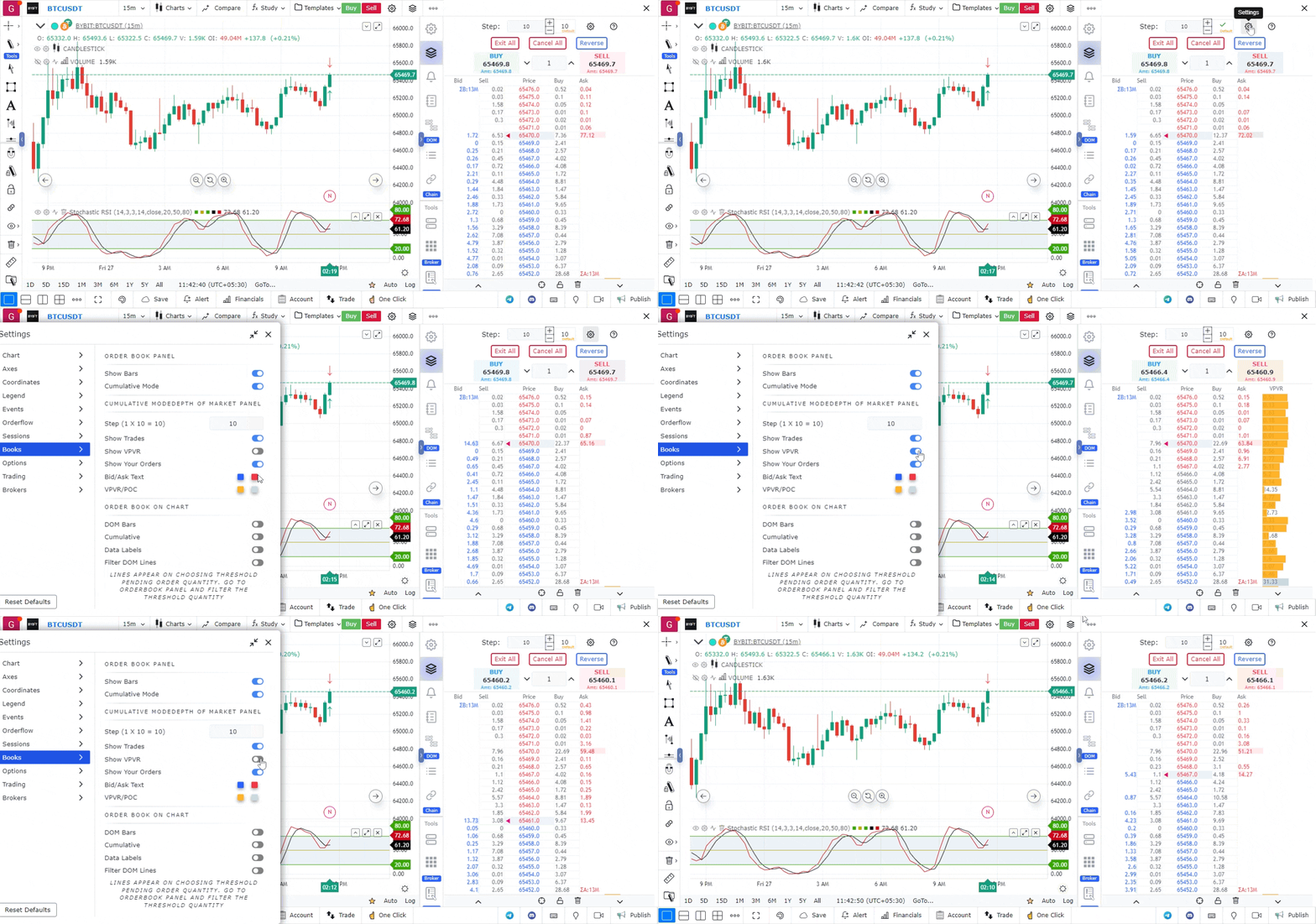
- Access various settings from the top settings option.
- You can enable or disable the buy and sell columns from the “Show Trade” option.
- Enable the Volume Profile Visual Range (VPVR) to see the volume profile for all trades executed during the day.
- Orders placed in the DOM can be displayed using the “Show Your Orders” option.
- Customize colors for bid/ask and VPVR/POC from this settings menu.
Books
Above the DOM, you’ll find the Books option on the widget bar. Since DOM and books are interconnected, some features overlap. Here’s a breakdown:
-
Trade Book
- Displays information about executed trades, sortable by trade size or amount via the field list (three dots option).
- Filter trades based on size using the trade filters button.
-
Order Book
- Similar to the DOM, it shows pending limit orders.
- You can filter pending limit orders similarly to executed trades in the trade book.
- Access various options for the trade book through the settings menu.
- Bars in the order book can be shown or hidden and converted into cumulative mode.

Order Book on Chart
An interesting feature allows you to visualize pending limit orders directly on the chart’s price axes. To enable this:
- Activate the DOM Bars option.
- Switch to cumulative mode if desired.
- Enable data labels to see the quantity of orders on the chart.
- If you wish to view filtered DOM lines on the chart, enable the Filter DOM Lines option.
This comprehensive DOM trading functionality in GoCharting empowers traders to make informed and efficient trading decisions.

Use Case
DOM (Depth of Market) Trading in GoCharting enables direct order placement and execution from the order book ladder, allowing traders to click price levels to send limit or market orders instantly. It is the preferred order entry method for scalpers and short-term futures traders.
Strategy
Configure your DOM with your standard order size (1 contract or your usual unit) and bracket order settings (automatic stop and target). Practice DOM execution in simulation mode until you can reliably place and cancel orders in under one second. In live trading, use DOM for pre-identified support and resistance levels only.
Common Mistakes
Do not use DOM trading without first practising extensively in simulation mode. Avoid placing market orders from the DOM during high-volatility news events where slippage can be extreme. Do not leave open limit orders on the DOM unattended — always know what your resting orders are and cancel them if the setup is invalidated.