Layers
The Layers feature allows users to manage and organize the various elements on their charts, such as indicators, drawings, and panels. It provides greater flexibility and control over how different chart items are arranged and displayed. You can access the Layers option from either:
- The top-right corner of the chart, or
- The widget bar.
Features of Layers
-
Panels Arrangement:
- The chart consists of different panels arranged from top to bottom, such as the Main Panel, Volume Panel, and other Indicator Panels.
- Each panel contains items (e.g., indicators, drawings) that have been applied to the chart.
-
Item Arrangement within Panels:
- Items like indicators or drawings are listed under each panel.
- The item at the top of a panel will be plotted first, and items below it will be plotted on top of the previous ones.
- To change the order of the items, simply slide them up or down within the panel.
-
Settings for Items:
- To adjust the settings of any item (e.g., indicator or drawing), click on the item in the panel, and its corresponding settings menu will appear.
-
Item Management:
- By hovering over an item inside a panel, you can lock, hide/unhide, or delete the item.
-
Grouping Drawings and Indicators:
- You can also group multiple drawings and indicators together for better organization. This process is further explained in the Drawing and Indicator Settings section.
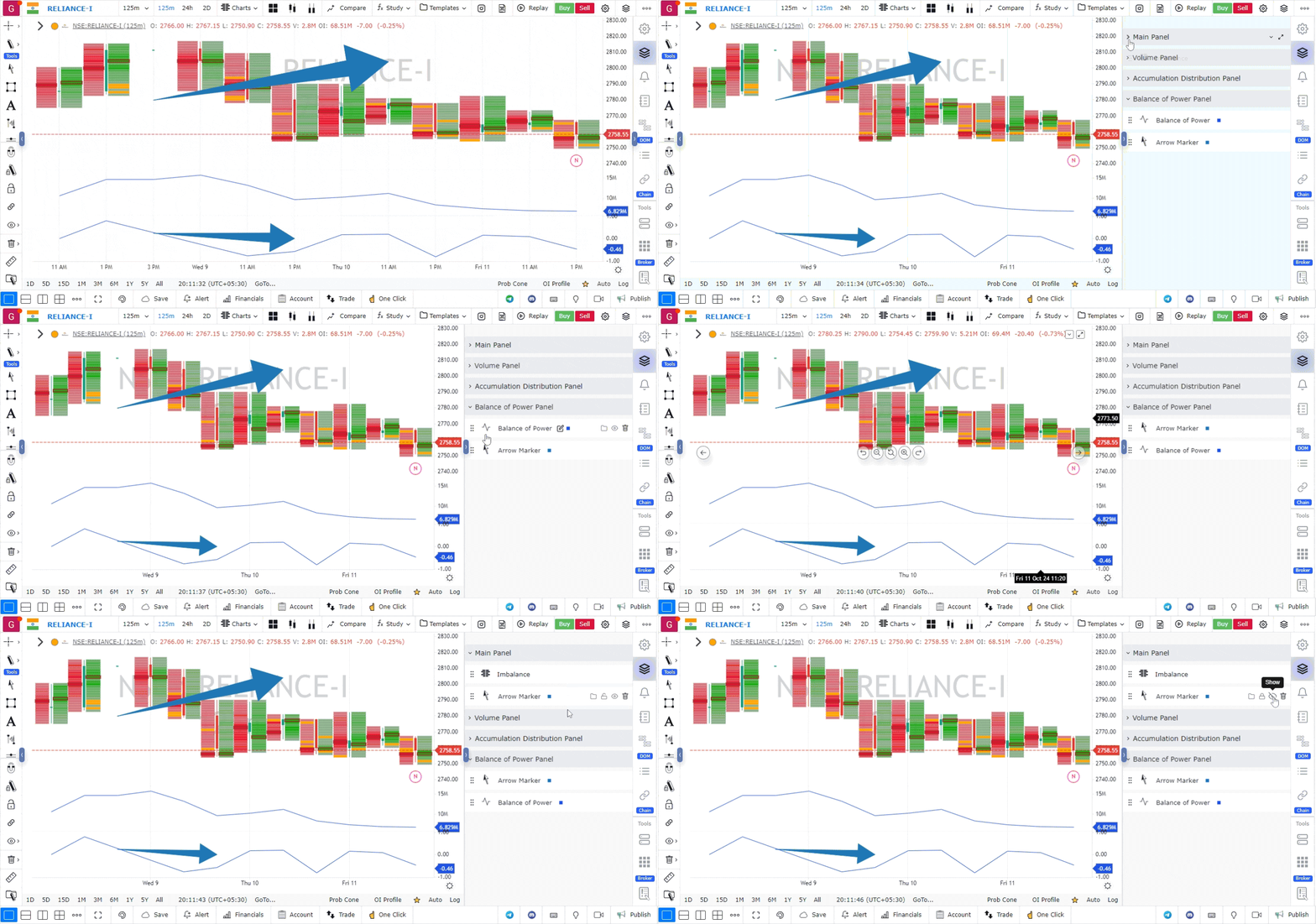
With the Layers feature, you can easily manage and customize the layout of your chart for a more streamlined and personalized trading experience.
Use Case
GoCharting’s Layers feature organises chart annotations, drawings, and indicators into manageable layers that can be shown, hidden, locked, or grouped. Layers enable complex chart setups to remain clean and navigable.
Strategy
Create separate layers for different analysis types: one layer for long-term structural levels (weekly/monthly support and resistance), one for current setup-specific drawings, and one for annotations from prior trade reviews. Hiding irrelevant layers during active trading keeps the chart clean.
Common Mistakes
Do not put all drawings on a single default layer — it makes them impossible to manage as the chart accumulates annotations over time. Avoid deleting layers without first reviewing whether they contain analysis you might want to reference later. Do not ignore the lock layer feature for completed analysis you want to protect from accidental modification.