GoCharting: Connect with Broker
GoCharting allows you to connect your broker to the platform, enabling you to trade directly from charts. This feature is especially helpful for traders looking to execute trades quickly, making it ideal for scalping and enhancing trading convenience. Below, we will explore the broker connection process and the settings related to trading.
Connecting to a Broker
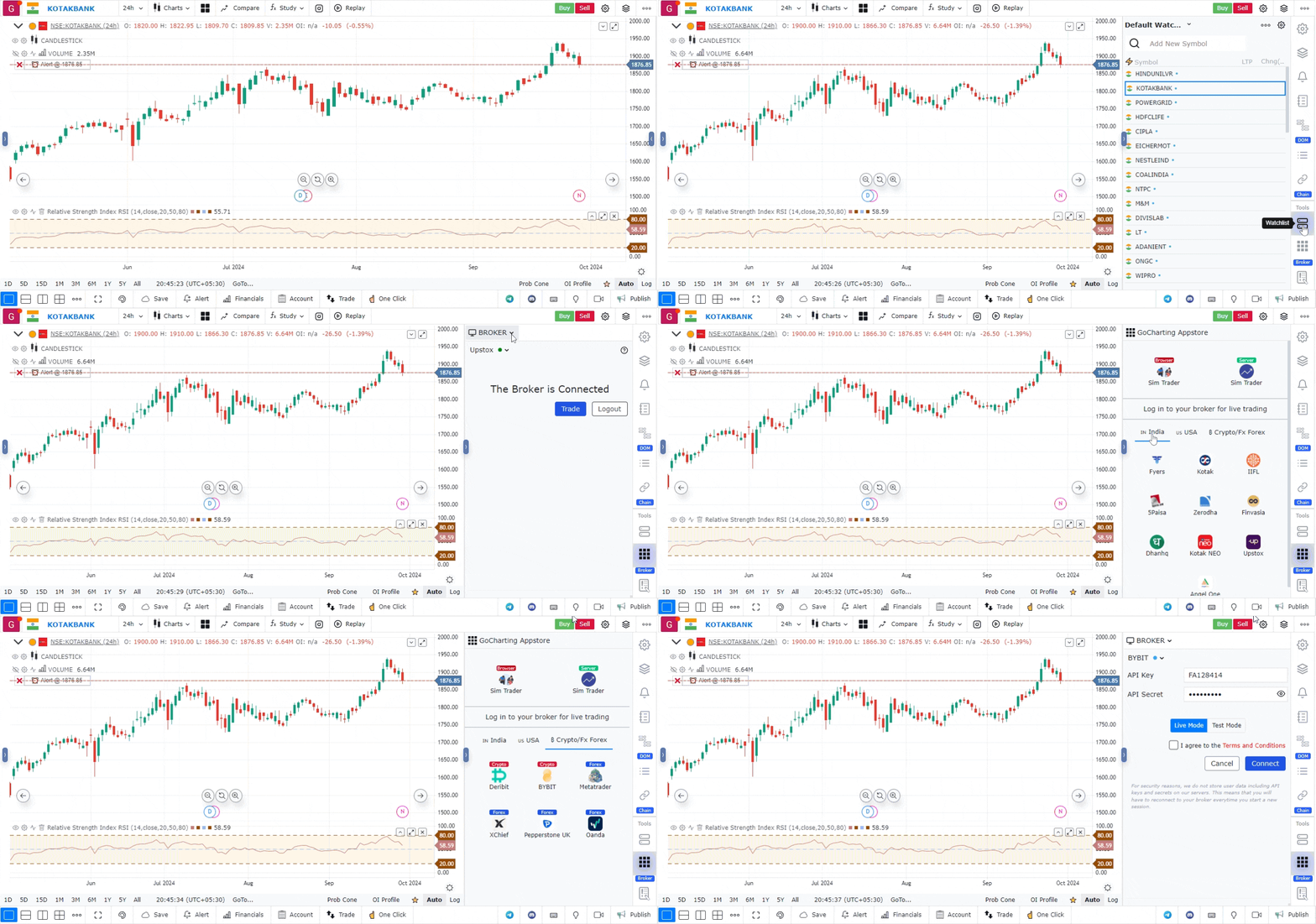
To connect your broker to GoCharting, follow these steps:
- Click on the Broker Section: Navigate to the widget bar and click on the “Broker” option.
- Choose a Broker: From the dropdown menu, select either the app store or directly choose a broker.
- Market Segmentation: Brokers are categorized based on market segments such as Indian, Forex, and US markets.
- Connect with Your Broker: Select your broker and follow the steps to connect. For each broker, you will find video tutorials that guide you through the connection process.
Use Case
GoCharting’s Broker Connection feature enables direct integration between GoCharting’s advanced charting platform and your trading broker, allowing order placement, position management, and real-time P&L tracking without switching between applications.
Strategy
Connect your broker via the Broker Connection settings using your API credentials. Test the connection with a minimal lot size order before using it for live trading. Configure default order types, position sizing, and hotkeys for your specific broker’s execution requirements.
Common Mistakes
Do not share your broker API credentials with anyone. Avoid going live with the broker connection without testing order submission, modification, and cancellation in simulation mode first. Do not ignore that broker API connections can sometimes experience latency or outages during peak market hours.