Order Flow Settings
The Order Flow Settings allow users to customize tick size, format volume, and apply the Power Trade Scanner for more precise order flow analysis. To access the order flow settings, follow these steps:
- Click the Settings icon located in the top-right corner of the platform.
- In the settings pop-up window, select Order Flow from the left-hand panel.
Available Options
-
Tick Manager
- Auto Mode: When enabled, the tick size is adjusted automatically.
- Manual Mode: If you disable the auto mode, you can manually input a number. The tick size is then calculated by multiplying the entered value by the base tick size. This will define the height of the cluster, i.e., the price range under which all orders are aggregated.
-
Format Volume
- This option allows you to format volume numbers by dividing them with an entered value.
- There’s also an automatic option that formats volume based on the lot size of the selected stock, dividing the volume accordingly.
-
Power Trade Scanner
- The Power Trade Scanner scans for large trades by taking two parameters: volume and time interval. It gives signals in the live market.
- First, examine the bar statistics to determine the average volume in a 1-minute or 5-minute candle.
- Then, based on the observed volume and your preferred time interval, you can input values into the scanner to identify significant trades happening within the specified period.
- The Power Trade Scanner scans for large trades by taking two parameters: volume and time interval. It gives signals in the live market.
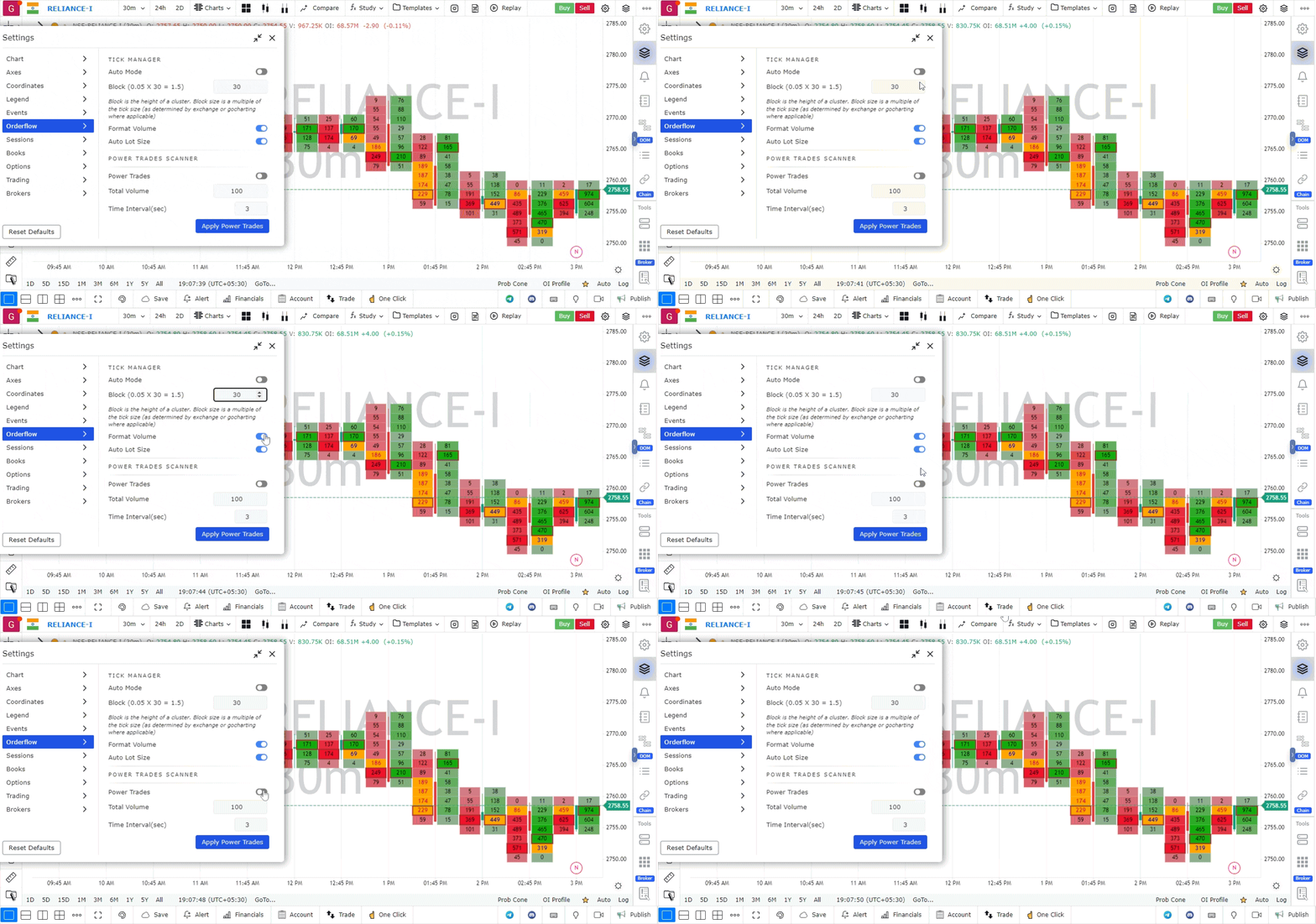
By adjusting these settings, you can tailor order flow features to better match your trading strategies.
Use Case
Orderflow Settings in GoCharting configure how footprint charts, delta bars, volume profiles, and other orderflow tools display and calculate data. Correct configuration ensures orderflow data is meaningful for your instrument and trading style.
Strategy
Configure Orderflow Settings for your specific instrument: set the tick size to match the instrument’s minimum tick, configure the imbalance threshold to highlight significant order imbalances (typically 3:1 or higher for futures), and set the colour scale to distinguish bid from ask volume clearly.
Common Mistakes
Do not use default orderflow settings across all instruments — each market has unique volume characteristics requiring customisation. Avoid setting imbalance thresholds too low, which creates visual noise from insignificant imbalances. Do not use orderflow data without a reliable tick data feed.