Session Settings on Chart
Displaying different trading sessions on a chart is crucial for traders to understand market activity, volatility, and liquidity throughout the trading day. Forex trading sessions are especially important, as they help traders track global market activity and make informed decisions. Here’s how to access and use the Session Settings in GoCharting.
Accessing Session Settings
To access the session settings in GoCharting:
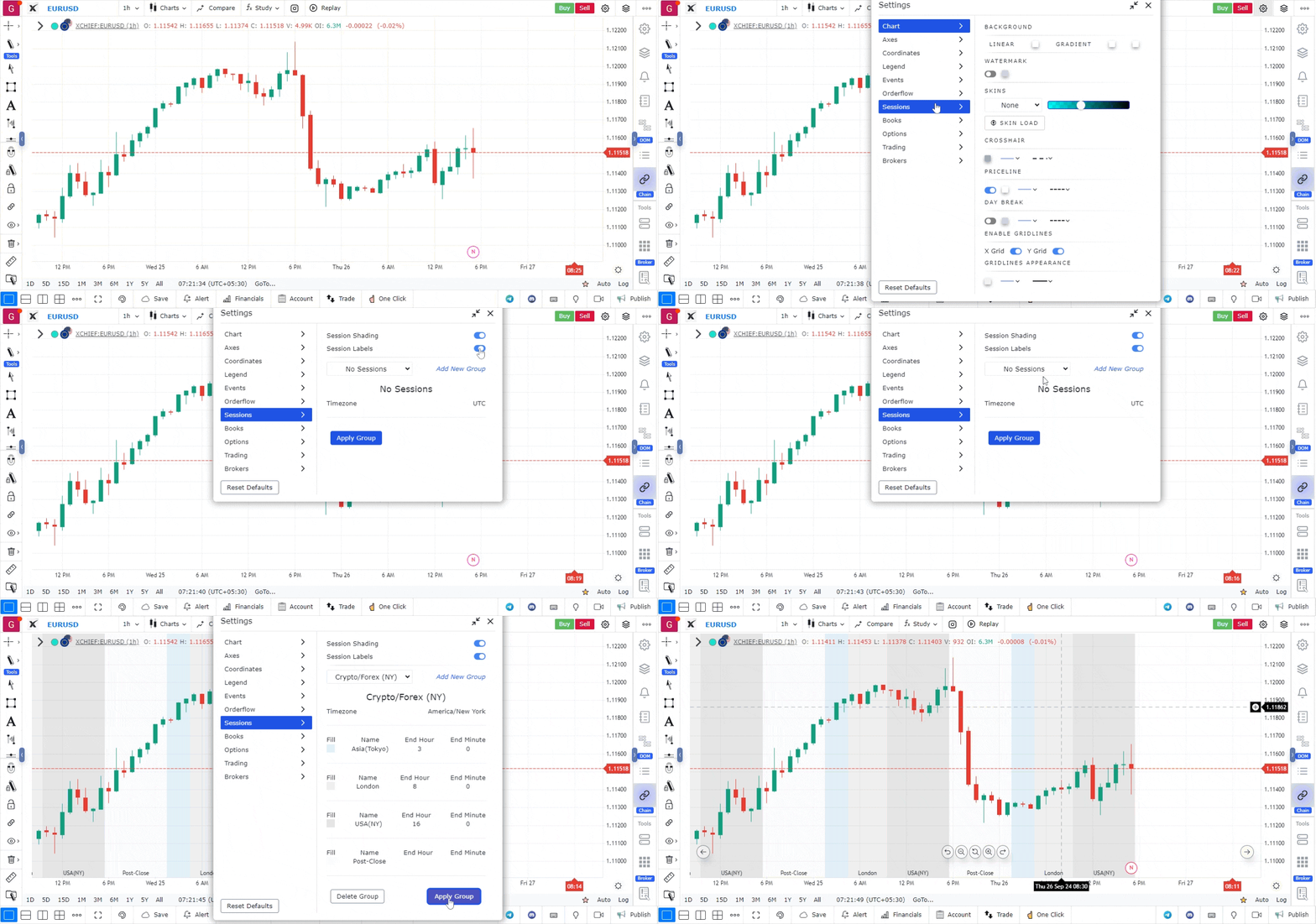
- Navigate to the Settings icon located at the top-right corner of the platform.
- Click on Sessions from the dropdown menu to access and modify session settings.
1. In-built Sessions
GoCharting offers several pre-configured trading sessions to streamline the process. These include:
- Forex Market
- U.S. Market
- CME Group
- MCX (Indian Market)
To apply any of these pre-built sessions:
- Select the desired session from the list.
- Click Apply to display the selected session on the chart.
2. Add/Delete Custom Sessions
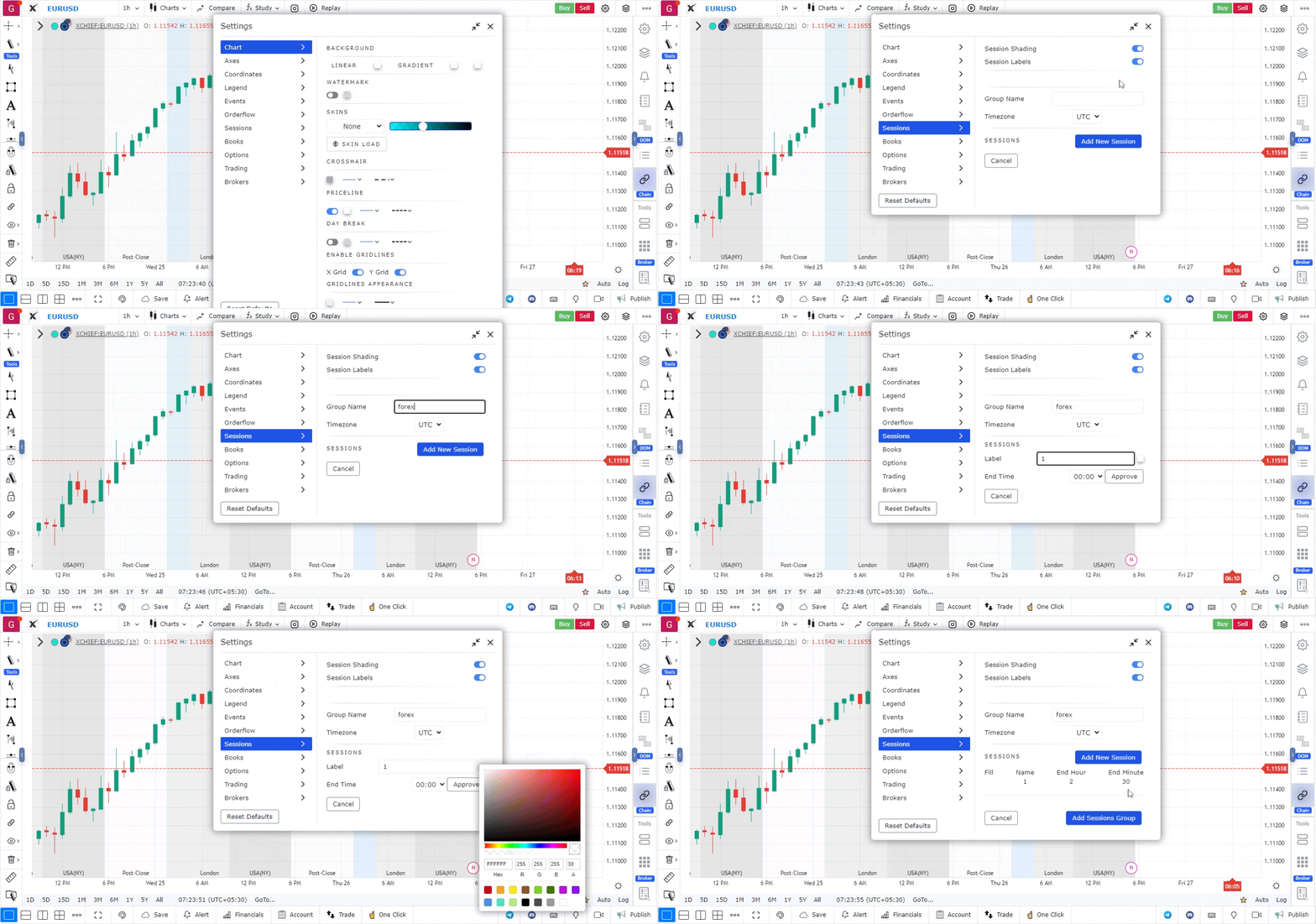
If you prefer customized session groups, GoCharting allows you to create and modify your own. To do so:
- Click on Add New Group.
- Provide a name for your custom session group.
- Click Add Session and define the following for each session:
- Name: Name of the session.
- Shading: Choose a color code for visual differentiation of sessions.
- Once you’ve added all the sessions, click Approve to finalize the group. You can create multiple sessions within a group and approve them individually.
3. Applying a Session
Once you’ve selected or created your session group:
- Choose the group from the Session Group Dropdown Menu.
- Click Apply Group to display the session on your chart.
4. Session Shadings
For enhanced clarity, you can toggle the Session Labels and Shading options. This will display the session names along with color-coded shading on the chart, making it easier to differentiate between trading times visually.
5. Splitting Market/Volume Profiles Based on Sessions
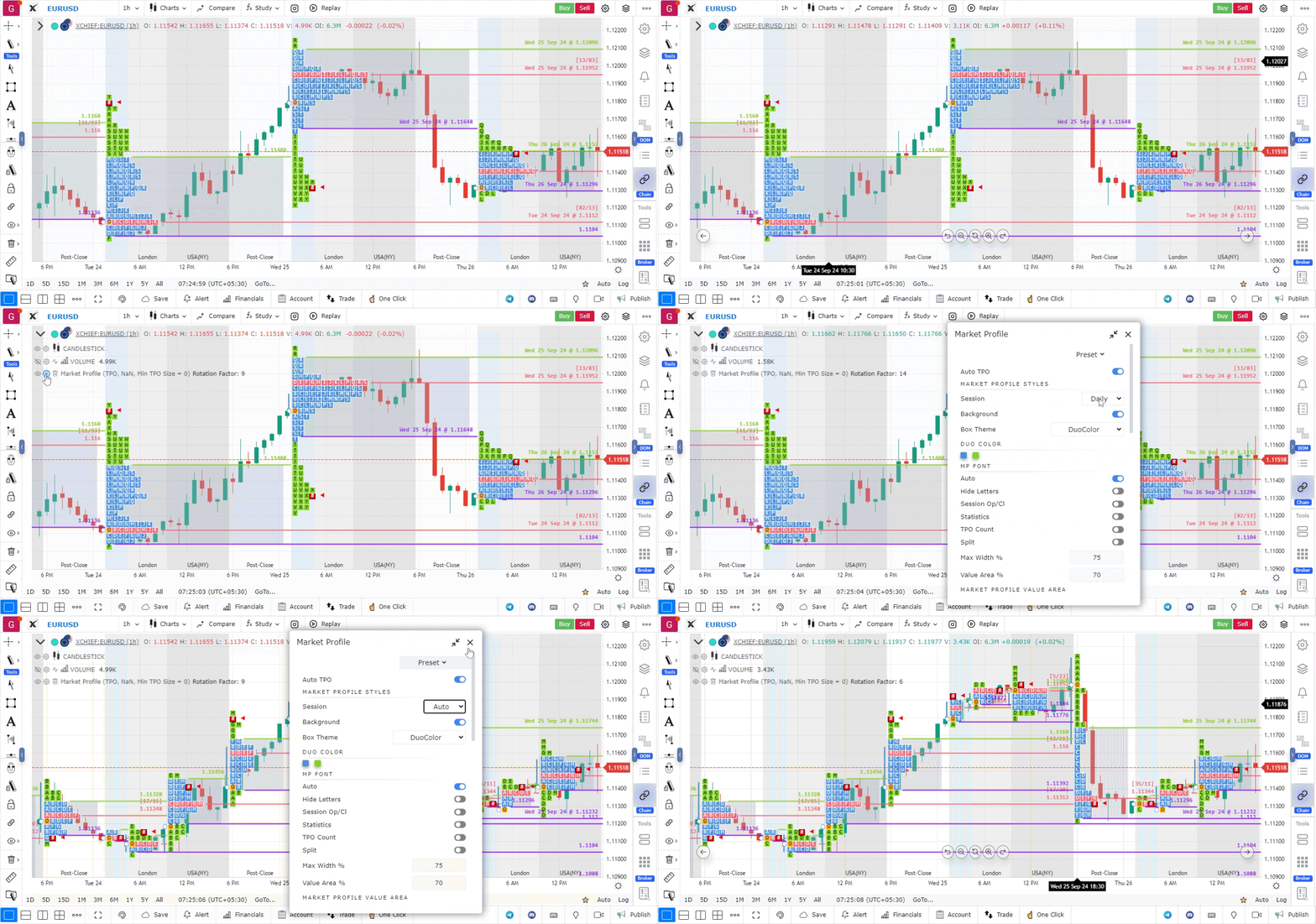
If you’re using Market Profile or Volume Profile charts and want to analyze how different sessions affect the market, you can split the profiles based on sessions. Here’s how:
- Go to the Profile Settings.
- Under the Sessions section, select Auto.
Your Market or Volume Profile will now be split according to the session group, providing deeper insights into market behavior during specific time periods.
By using GoCharting’s session settings, traders can effectively track market dynamics during different trading periods, optimizing their decision-making processes.
Use Case
Session Settings in GoCharting allow traders to define which trading sessions are shown on the chart, including regular trading hours, extended hours, and overnight sessions. Correct session configuration is critical for meaningful price analysis.
Strategy
Configure Session Settings to show only the regular trading session for your primary instrument. For futures traders, include the overnight session but visually separate it from the regular session using session line markers. Use session-based VWAP that resets at your defined session start.
Common Mistakes
Do not include pre-market and after-hours data in your regular session chart analysis without understanding that this data has lower liquidity and can create misleading support/resistance levels. Avoid using the same session settings for all instruments — futures, equities, and forex have different meaningful session boundaries.