GoCharting Terminal V2 Is Now Available
GoCharting Terminal V2 is available now, with Advanced Bar Replay, new chart types, expanded Volume Footprint controls and a redesigned Depth of Market (DOM) panel. The interface has also been updated, with several familiar controls in new locations.
Terminal V2 rebuilds the charting workspace. Alongside the new design, it adds shorter chart intervals, expanded order flow tools, community watchlists and alerts on built-in indicators. Lipi V2 is live in the new terminal. The sections below explain the changes and where to find them.
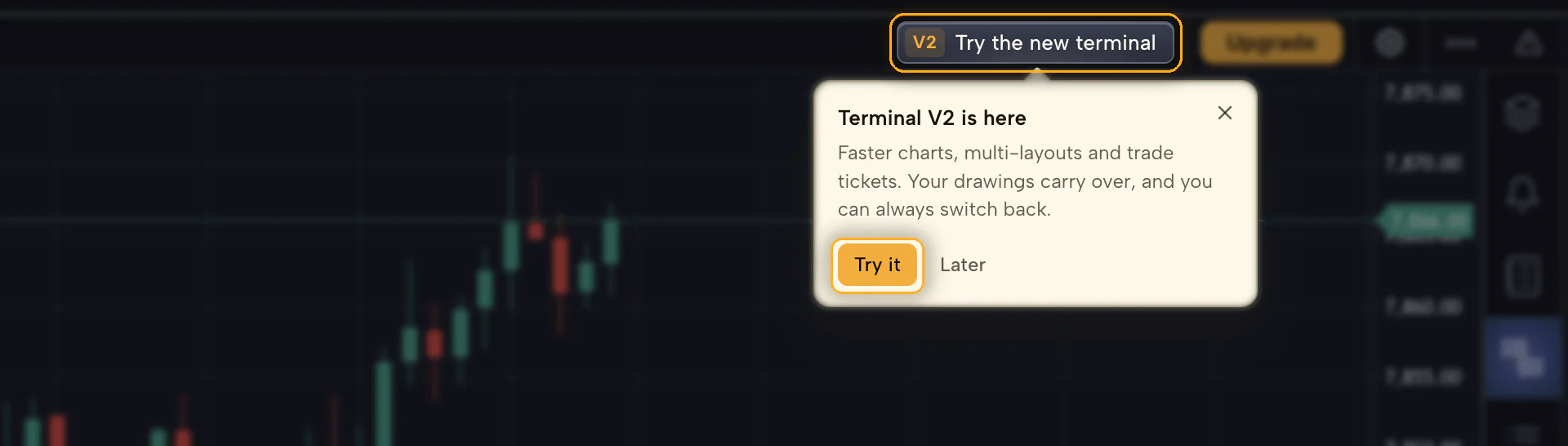
If GoCharting opens in Classic, select the Try the new terminal button in the top navigation to open V2. You can return to Classic from the same area. Your layouts, templates and saved work remain available.
In this post:
- Faster charts, down to 5 seconds, and HD rendering
- Advanced Bar Replay and Backtesting Sessions
- Volume Footprint, Market Profile and Volume Profile upgrades
- Order lines and a redesigned DOM
- Alerts, including alerts on built-in indicators
- Rebuilt watchlists
- Drawing tools, Universal Undo/Redo, multi-chart sync and popout panels
- Where familiar controls have moved, and Lipi V2, now live
A New Look and Feel
Terminal V2 updates the colors, spacing and styling across the terminal. The changes make chart elements easier to distinguish and common controls easier to find.
- Clearer icons. New icons make tools and menus easier to recognise at a glance.
- Sharper colors. Improved contrast makes charts and panels easier to read.
- Improved workflows. Common actions sit closer to where you use them. See “Navigation changes and Lipi V2” below for the full list.
If you prefer the old layout, Switch to Classic remains available in the top bar.
Charts That Keep up With the Market
V2 improves chart rendering and adds intervals as short as 5 seconds. Indicators and profiles remain available on those charts.
5-second charts and more intervals
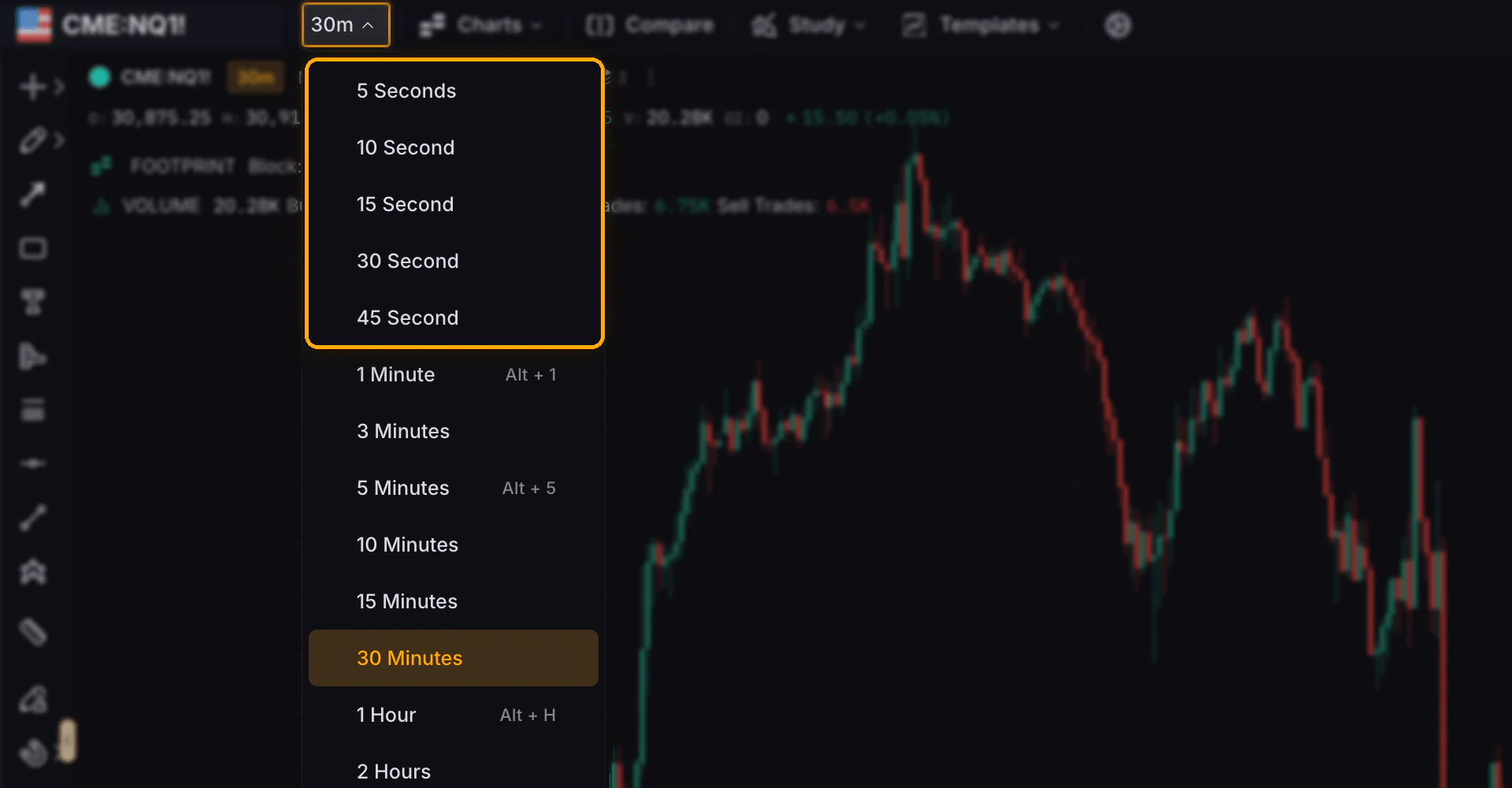
The interval menu now offers 5, 10, 15, 30 and 45 second charts, plus a Custom option. Second-based intervals are available on eligible paid plans.
HD chart rendering
Charts now render sharply on high-resolution and scaled displays, including 1.25x and 1.5x scaling. A new pixel-ratio handling for fractional display scaling keeps candles, lines and overlays crisp instead of slightly blurred. That matters most on laptops and 4K monitors.
Chart snapshots and exports also use HD rendering.
Replay Across Charts and Review Your Trades
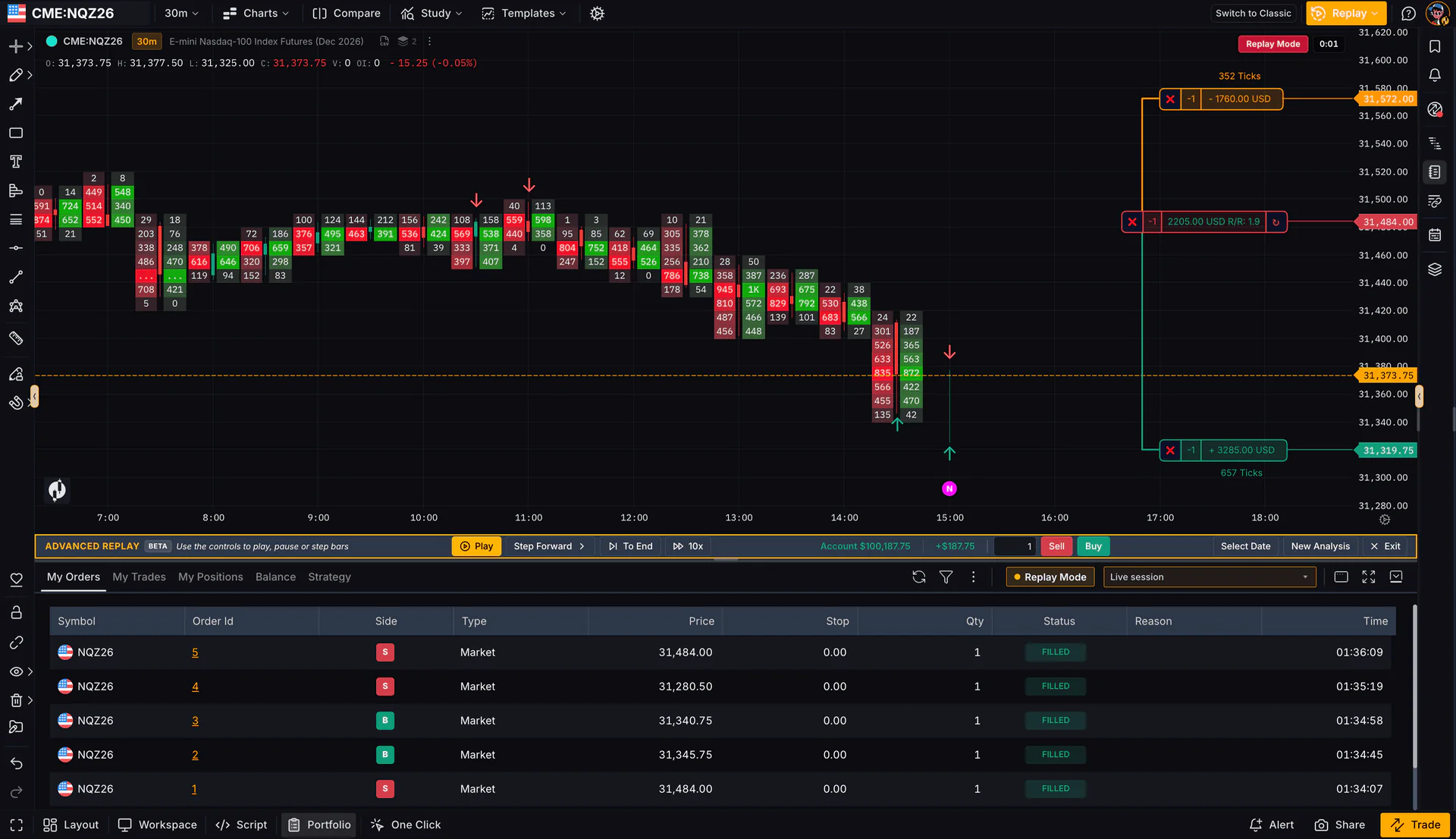
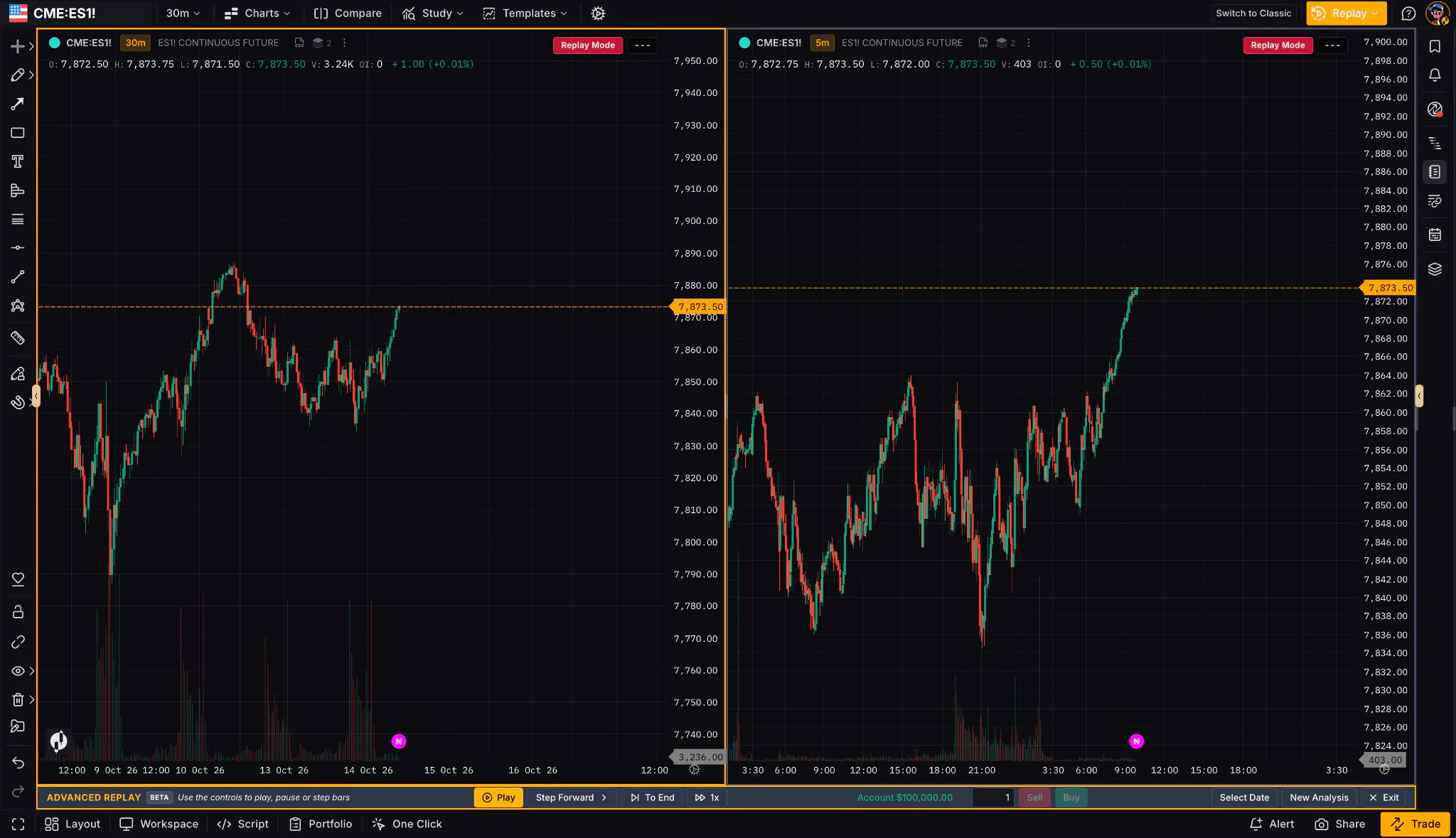
Advanced Bar Replay (beta) moves the market forward across the charts in your layout at the same time. You can place simulated orders as bars print, while take-profit and stop-loss blocks show the running P&L for those replay trades. Choose a historical session to practice a setup with simulated orders.
Two replay modes
- Simple Bar Replay: free single-chart replay without simulated trading.
- Advanced Bar Replay (beta): synchronized replay across multiple charts with simulated order execution on paid plans.
The replay bar
The replay bar gives you Play, Step Forward, To End, speed control, Select Date and New Analysis, so you can control the pace of a session and jump to the date you want to practice.
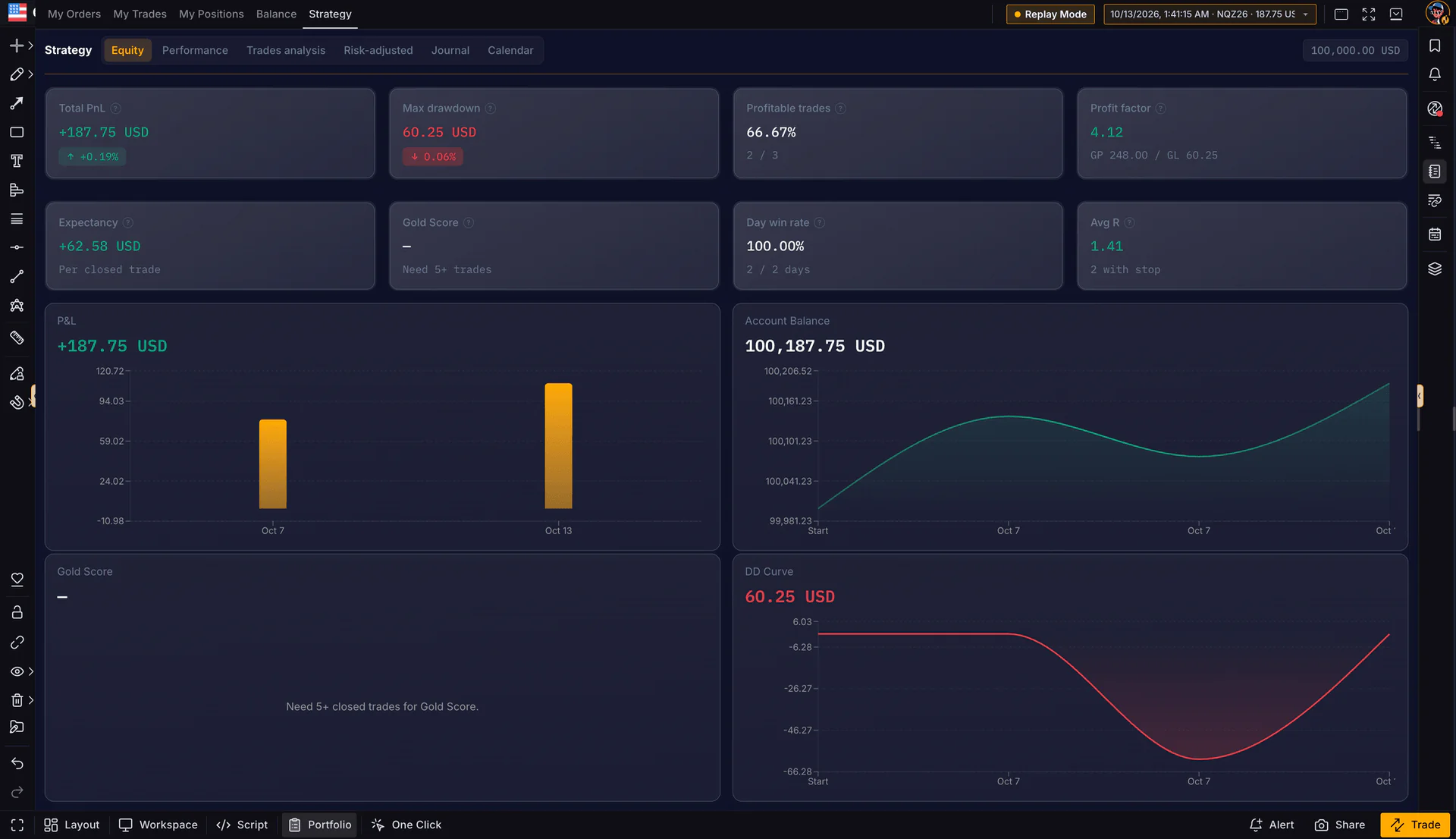
Simulated trading with running P&L
Place simulated Buy and Sell orders using a $100,000 virtual balance, track P&L as the replay runs, and resume the session later.
Backtesting Sessions (beta)
Backtesting Sessions (beta) provides analytics from past Advanced Bar Replay runs, so you can review your results after a session.
Deeper Order Flow Tools
V2 adds display controls and reference levels to its order flow charts and profiles. The advanced tools described below are available on Premium.
More control over Volume Footprint
The updated Volume Footprint menu controls GoCharting’s footprint chart, previously called Cluster charts. It appears at the top of the Charts menu and opens with Alt+F. Options include:
- Candle Type and Orientation control the cluster layout.
- Columns and Color Matrix presets change how clusters are grouped and colored.
- Separate text formatting for the left (Sell) and right (Buy) clusters.
- Ignore Zeroes removes zero values from the display for a cleaner footprint.
Stacked imbalance zones, VPOC and value area levels now persist off the viewport. They remain visible after the source candle scrolls out of view.
Market Profile and Volume Profile
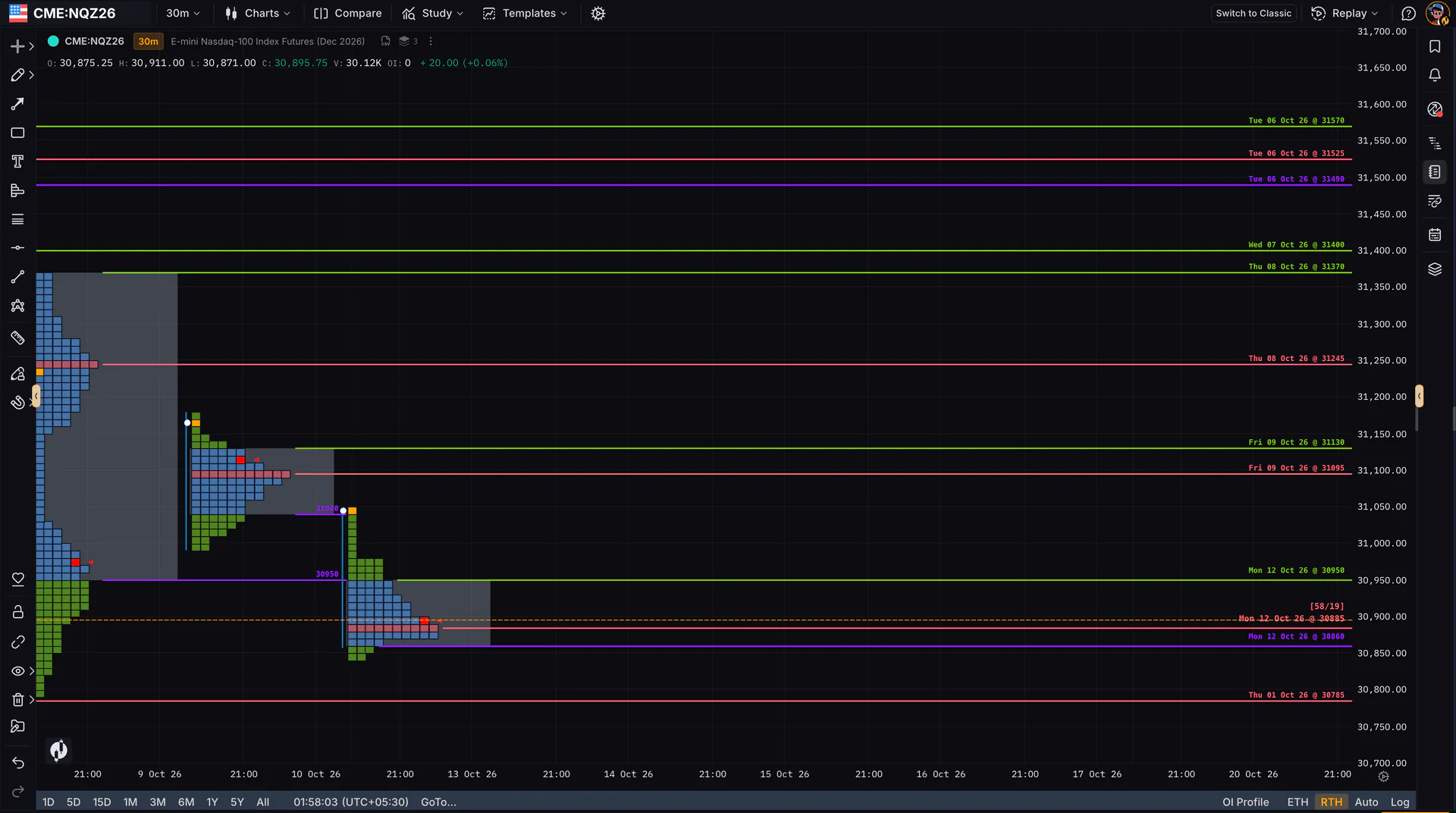
Market Profile (TPO) and Volume Profile can carry key levels into later sessions. POC and value-area levels remain visible when price revisits them.
- Extended levels: POC, VAH and VAL lines carry forward across days, labeled with their date and price.
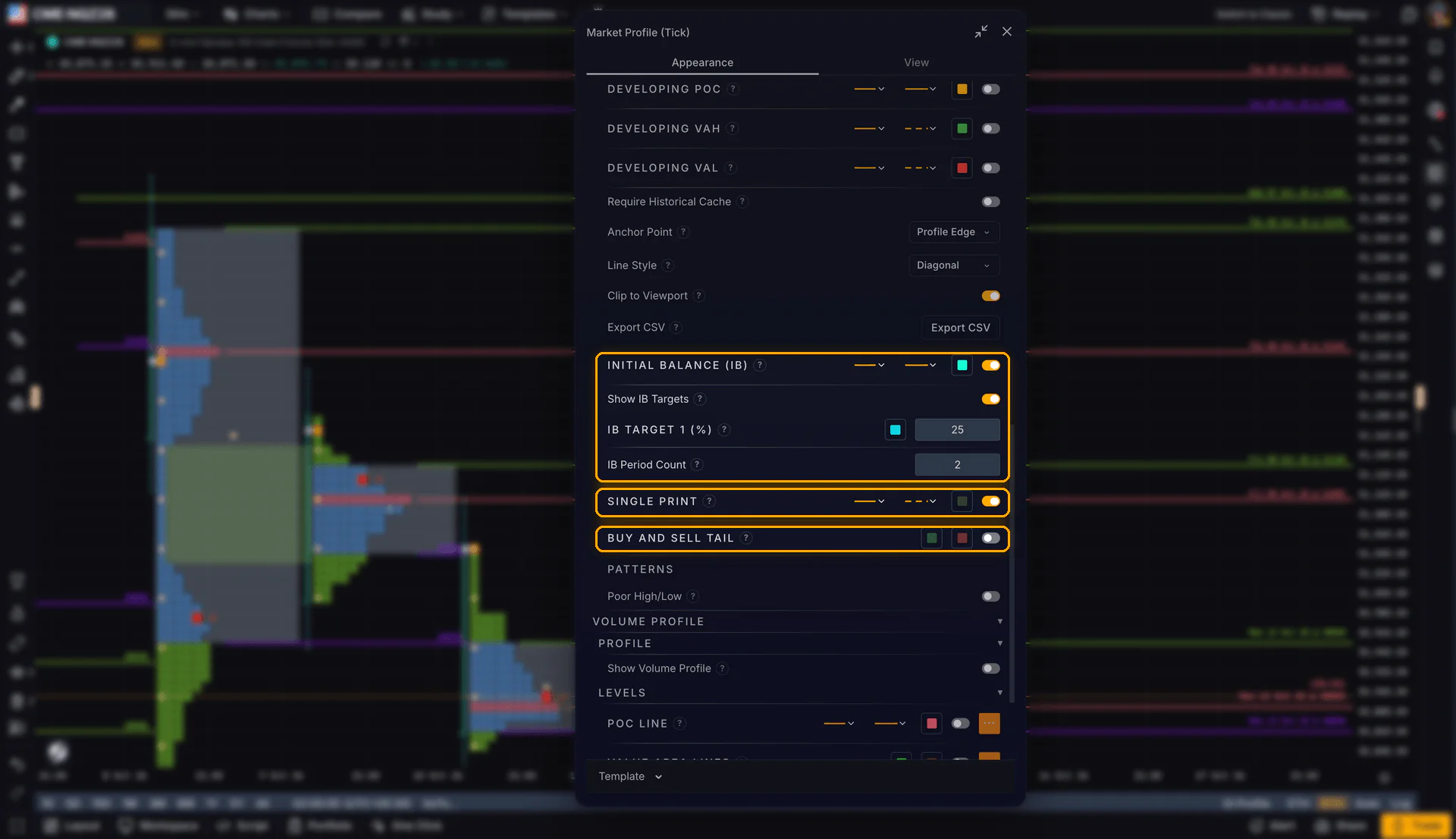
- Buy and Sell Tail, Single Print, Poor High/Low: auction signals highlighted on the profile.
- Prior POC and Initial Balance: a PPOC line and IB targets, with a configurable IB period.
- Split Profile and Session Group: new options in settings, tied to custom sessions. You can split a profile into Asia, London and New York, for example.
Trade From the Chart
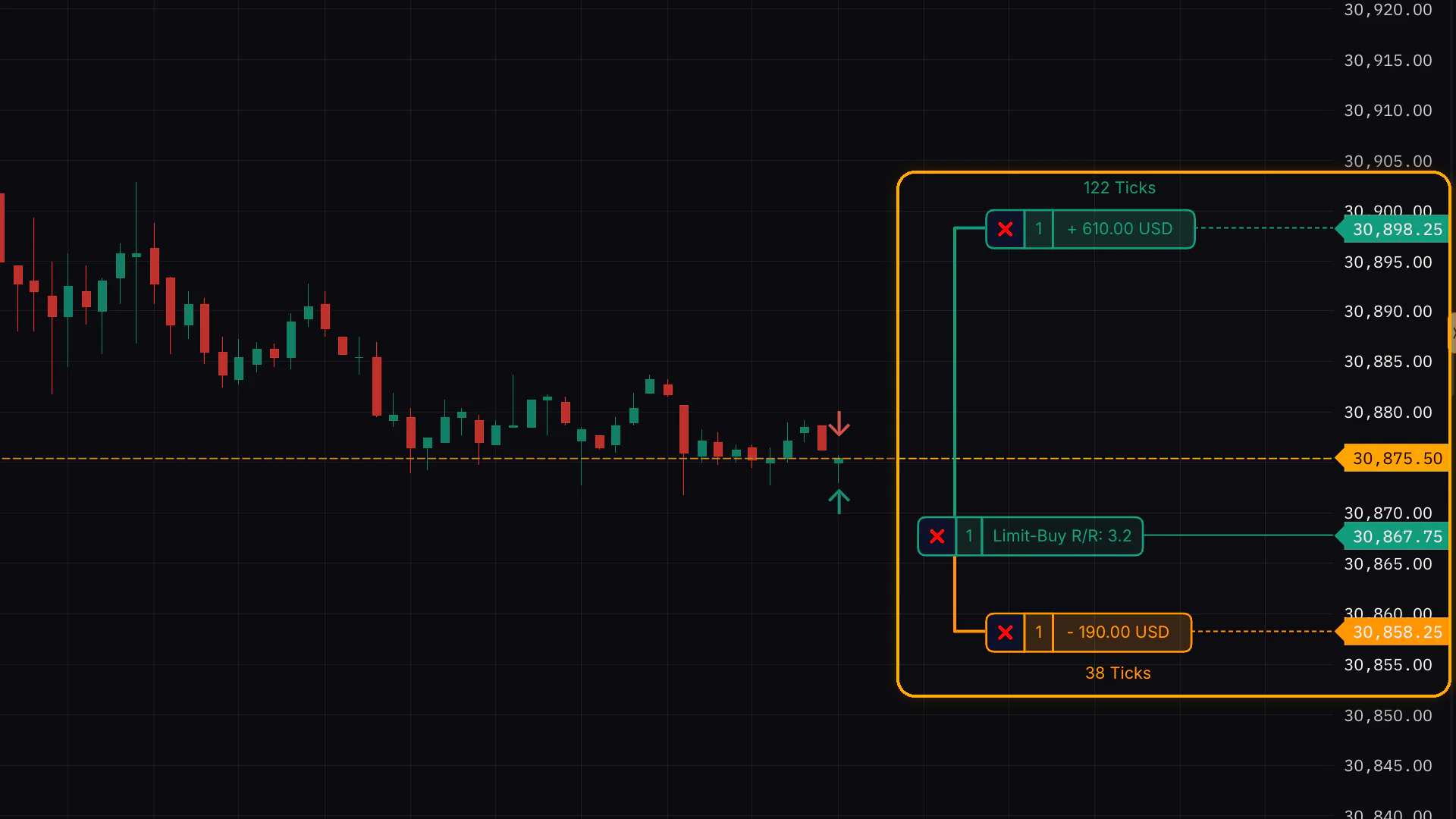
On supported broker connections, Take Profit and Stop Loss order boxes display P&L for the selected levels as you adjust an order.
Order line upgrades
- P&L on TP and SL boxes. The boxes display the profit or loss associated with the selected levels before you move an order line.
- Partial exit directly from the chart.
- Reverse position in one action.
- Better bracket orders. Improved bracket order handling and smoother order line dragging.
A redesigned DOM panel
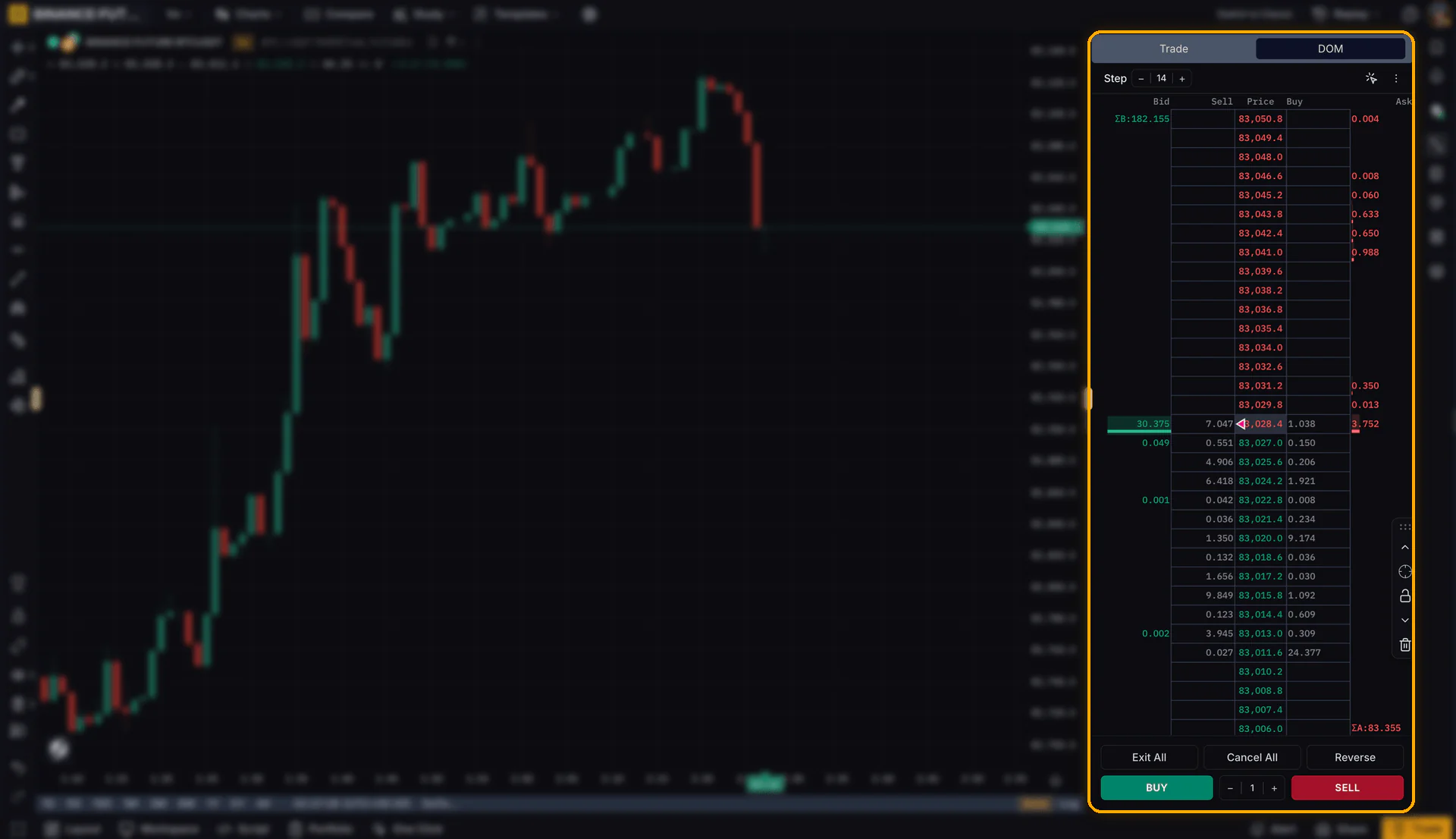
The redesigned DOM ladder sits beside your chart. It includes one-click Buy and Sell controls, along with Exit All, Cancel All and Reverse actions in the same panel. You can view market depth and manage orders without leaving the chart workspace.
Alerts on Indicators and Across Tabs
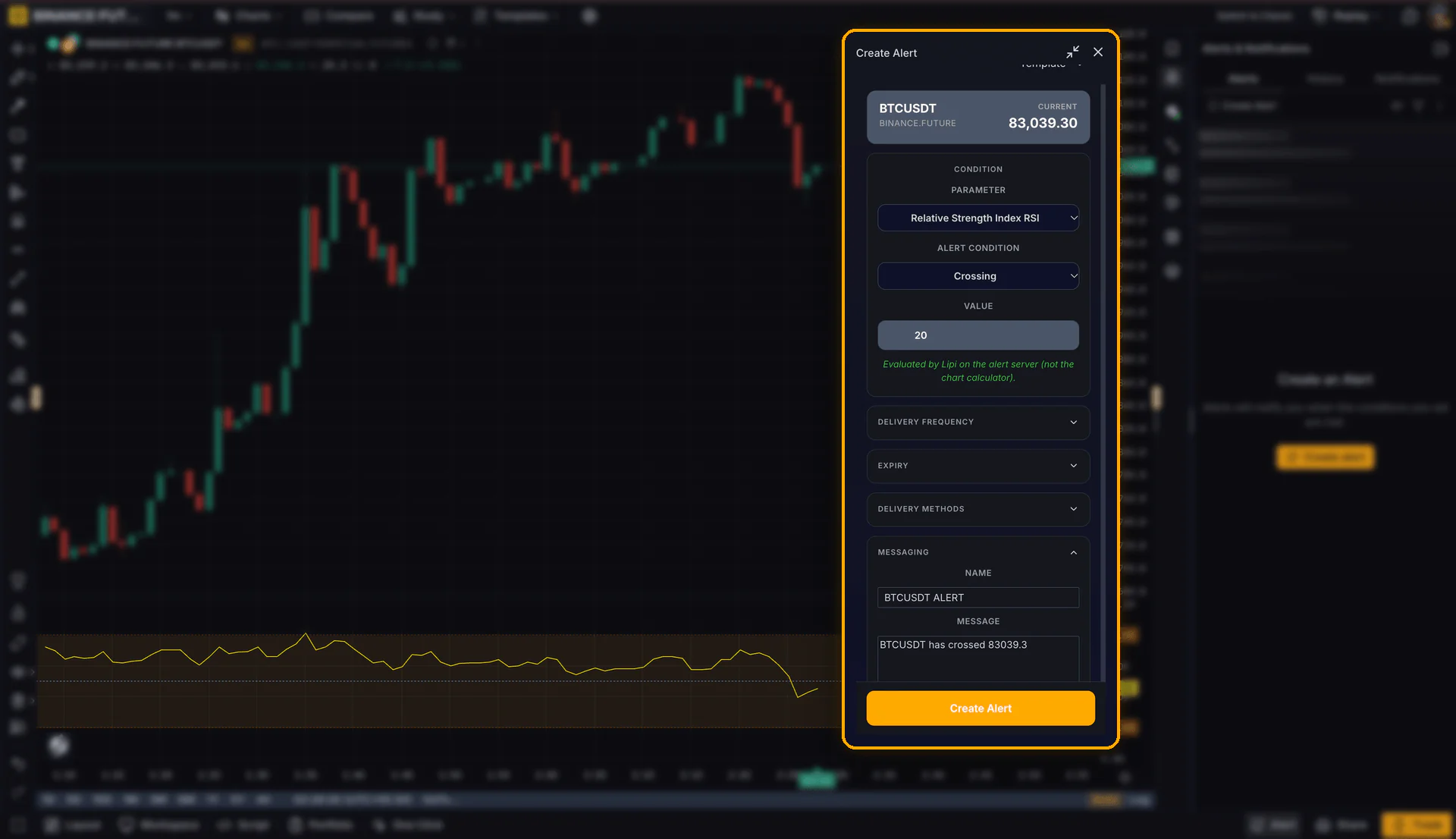
Press Tab and double-click the chart to create an alert. The updated controls also reduce duplicate notifications across open browser tabs.
Alerts on built-in indicators
On Premium, you can set alerts on GoCharting’s built-in indicators. The chart shortcut, price-axis button and Create Alert widget give you ways to set one up without leaving the chart.
Create an alert from the chart
- Quick alert on chart: press Tab and double-click on the chart, or use the new Alert button on the price axis.
- Shift+A opens the Create Alert widget.
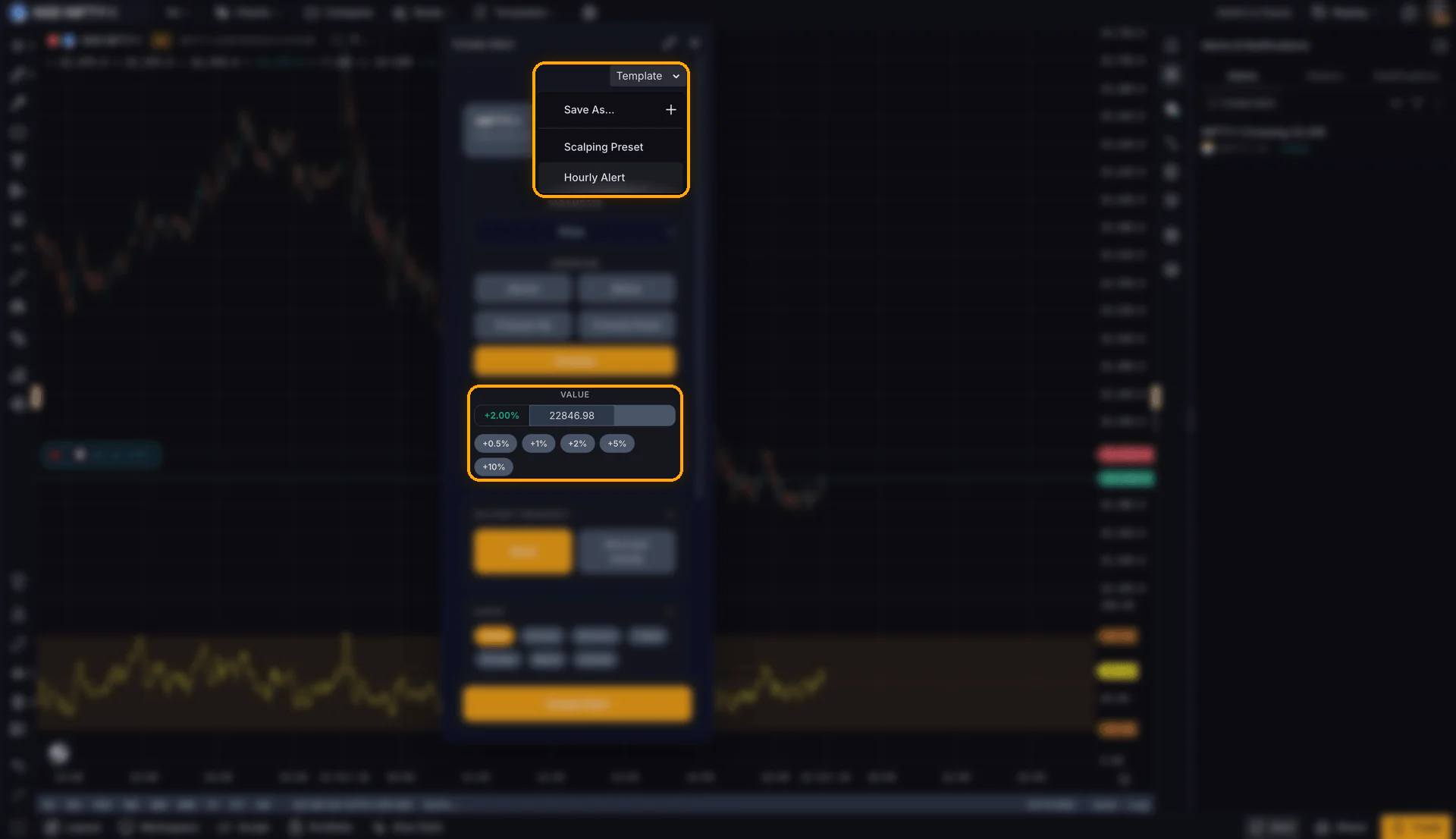
- Templates and quick offsets: reuse alert templates, and add one-click +0.5%, +1%, +2%, +5% and +10% values.
- Alert icon on the crosshair marks alert levels at the cursor.
Control how alerts look and sound
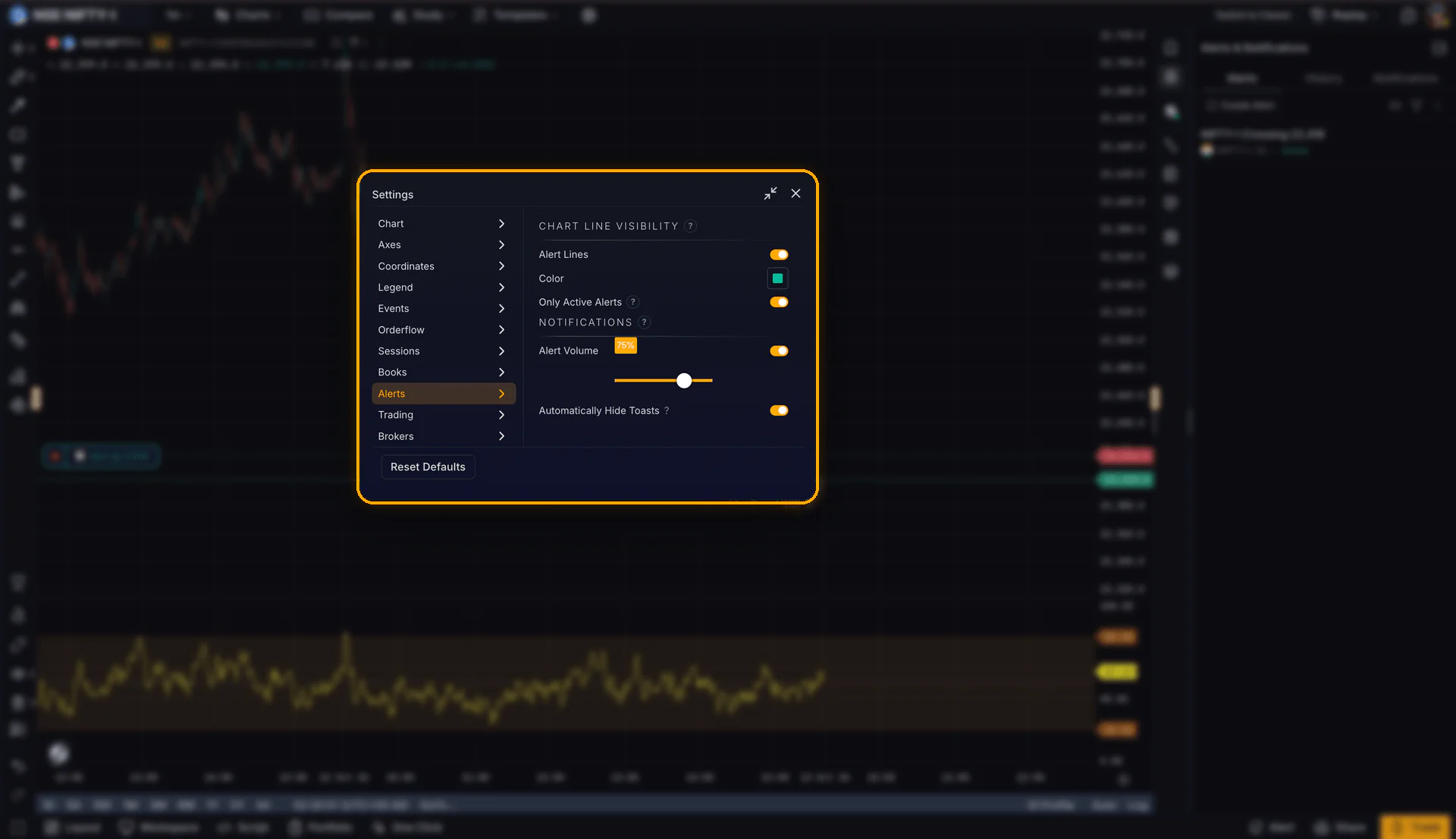
A new Alerts tab in Settings lets you control alert line visibility, color, whether to show only active alerts, alert volume and auto-hiding toasts.
Alert notifications across tabs
Popups and sounds now fire once across open browser tabs. When you acknowledge an alert in one tab, it clears in all of them.
Watchlists, Rebuilt
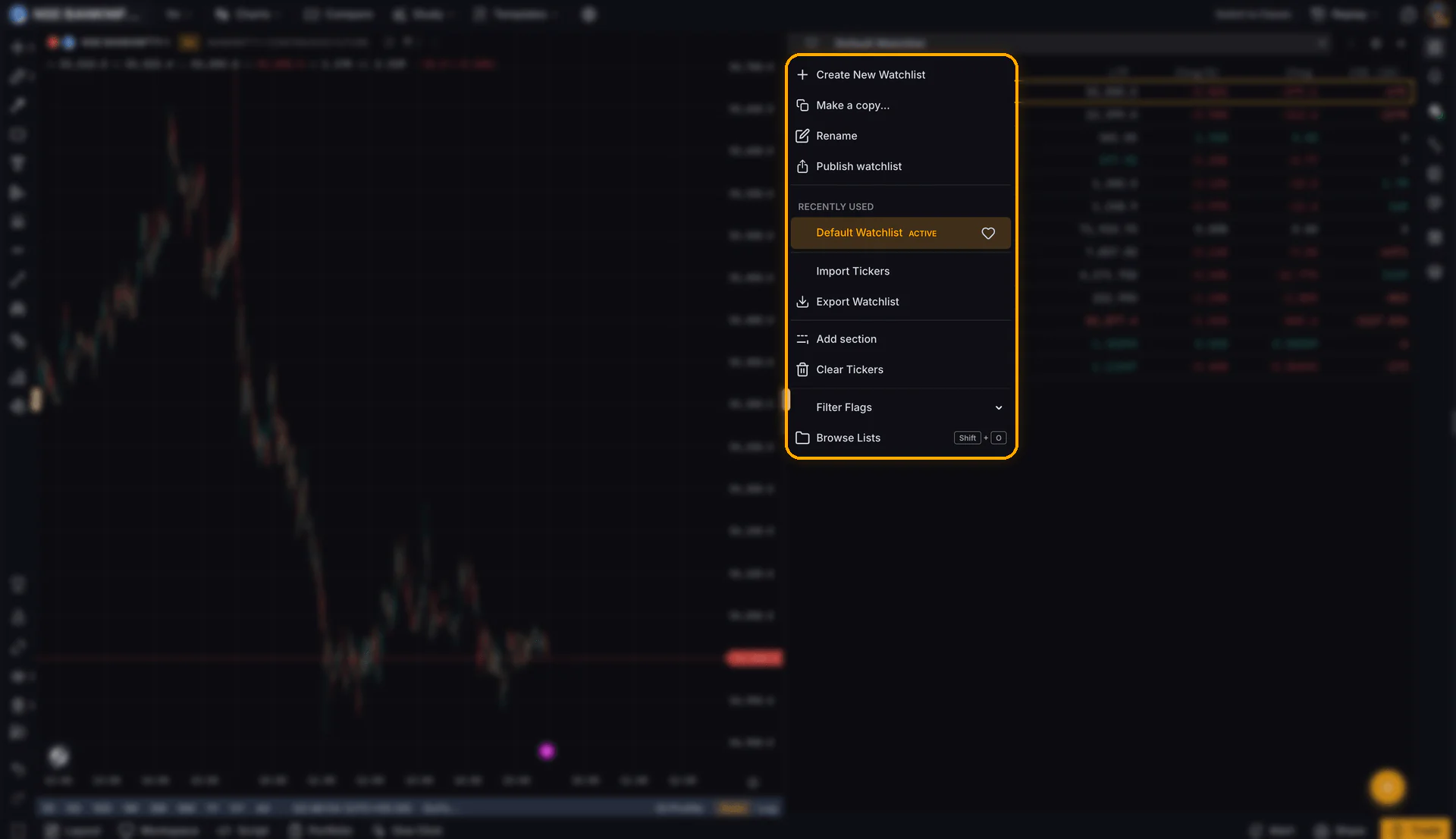
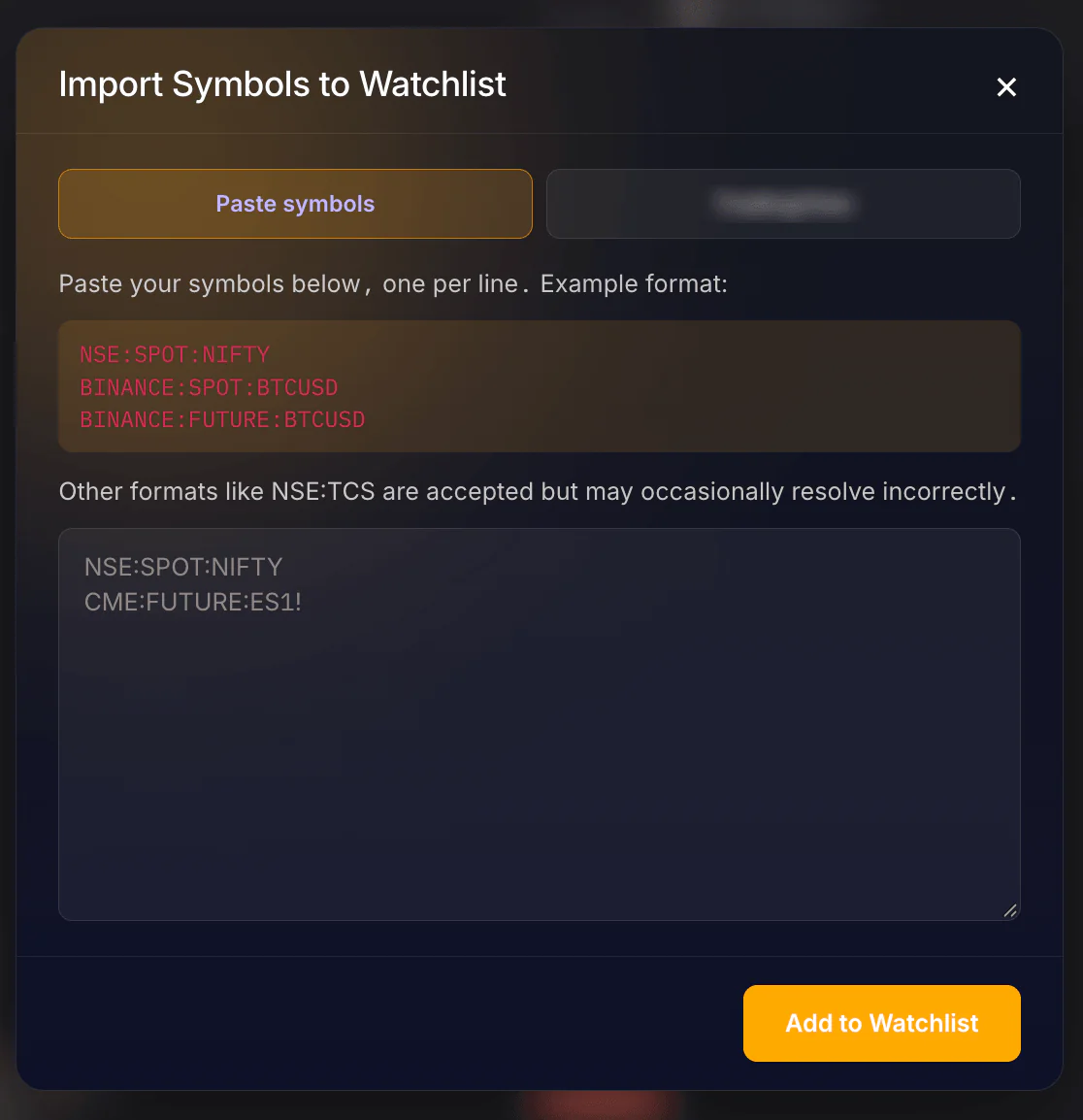
Watchlists in V2 have a new interface and save automatically. You can browse lists published by the community, use curated Hotlists or import your own symbols.
- Browse Lists (Shift+O): Favourites, My watchlists, Hotlists and Community in one modal.
- Publish watchlist: share your list with the community.
- Import Tickers: paste symbols or import an existing watchlist. An empty watchlist prompts you to import.
- Export Watchlist, sections and flag filters from the same menu.
- Higher limits: paid plans can track up to 250 symbols per watchlist, up from 100.
- Smoother to use: auto-save, a multi-column layout and popular symbols by country in search.
Drawing tools, Refreshed
V2 brings a broad refresh of the drawing experience. Here is what changed.
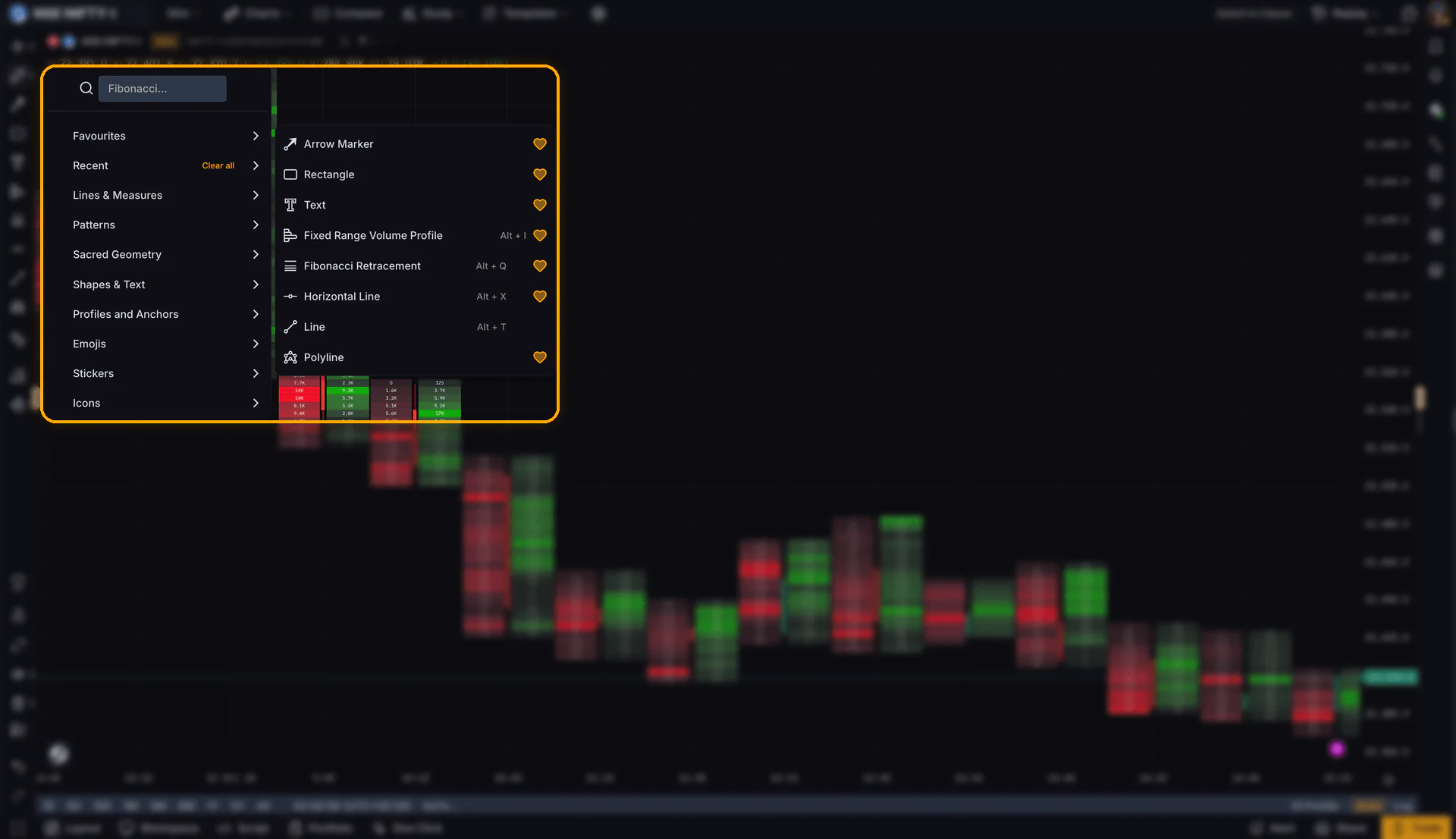
Find your tools faster
Favourites and Recent now sit at the top of the drawing menu. Categories include Profiles and Anchors, Sacred Geometry, Emojis, Stickers and Icons.
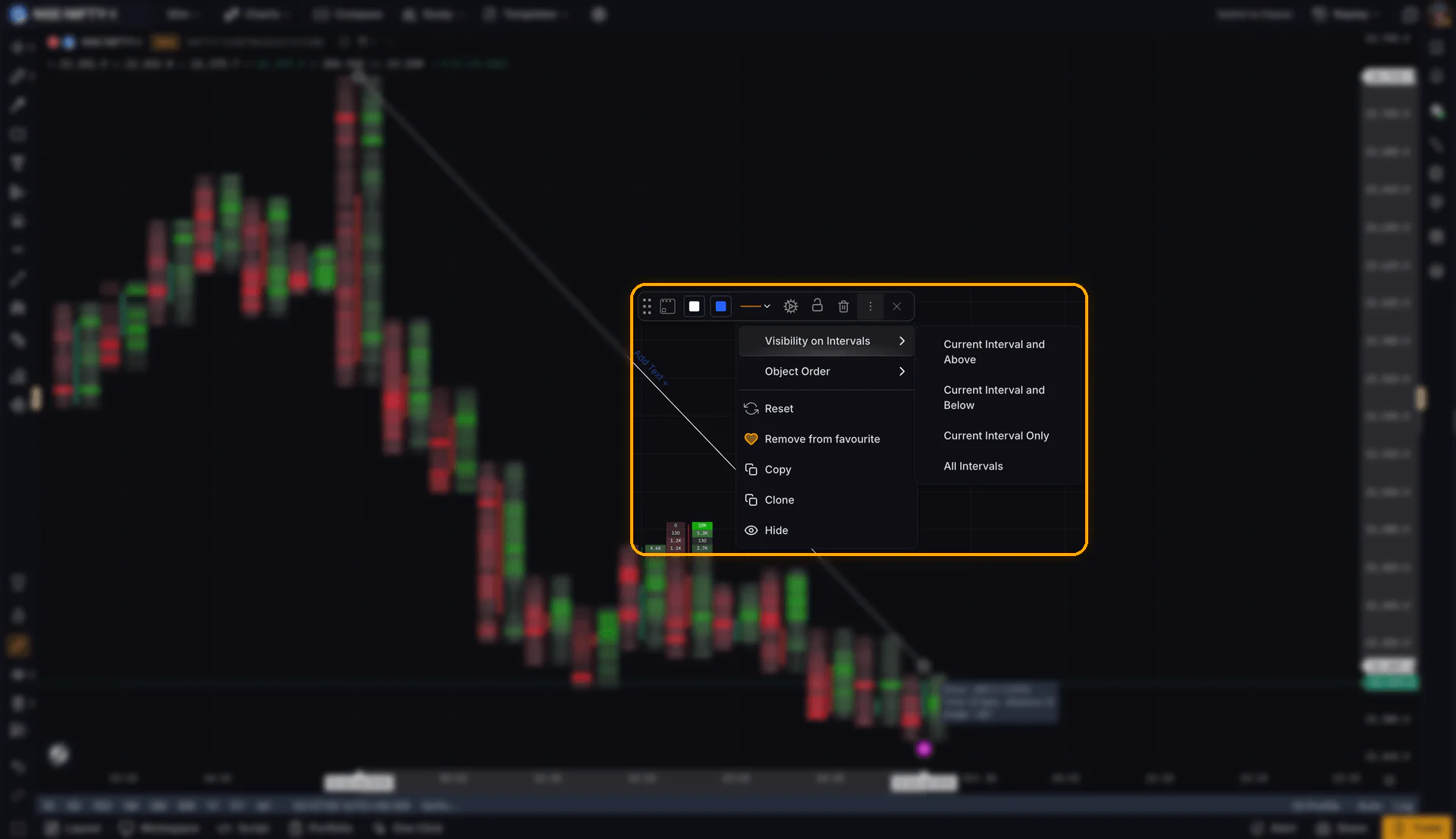
Control where drawings appear
Visibility on Intervals lets you show a drawing on the current interval only, on the current interval and above, on the current and below, or on all intervals. Your weekly levels can stay off your 5-minute chart, and your intraday marks can stay off the daily.
A new Delete Locked Drawings option sits alongside Delete All Drawings, Indicators and Objects.
Draw with fewer clicks
- Draw on non-candle zones: place drawings in the empty space beyond the last candle.
- Interactive text in one click, where it used to take a click plus a double-click.
- Magnet mode on Ctrl: hold Ctrl to snap the cursor to price.
- Ctrl+C / Ctrl+V for drawings.
There is also anchored text, a trend angle input, an improved Brush and better transparency control on the Sacred Geometry tools.
GoCharting tip: hold Ctrl while drawing to snap to price.
Workflow Upgrades
Universal Undo/Redo
Ctrl+Z now covers changes to indicators, settings, drawings and layouts. Previously, Undo and Redo covered drawing tools.
Multi-chart and multi-tab sync
If you run several charts or browser tabs, you can set things up once.
- Multi-chart: sync the date range, apply general settings and apply indicators across charts.
- Multi-tab: theme, trading defaults and the selected watchlist sync across open browser tabs.
Popout and docked panels
The terminal now suits multi-monitor setups. Panels detach into their own windows or dock at the bottom.
- Pop out panels such as the watchlist and chain into separate windows.
- Use resizable, dockable bottom panels.
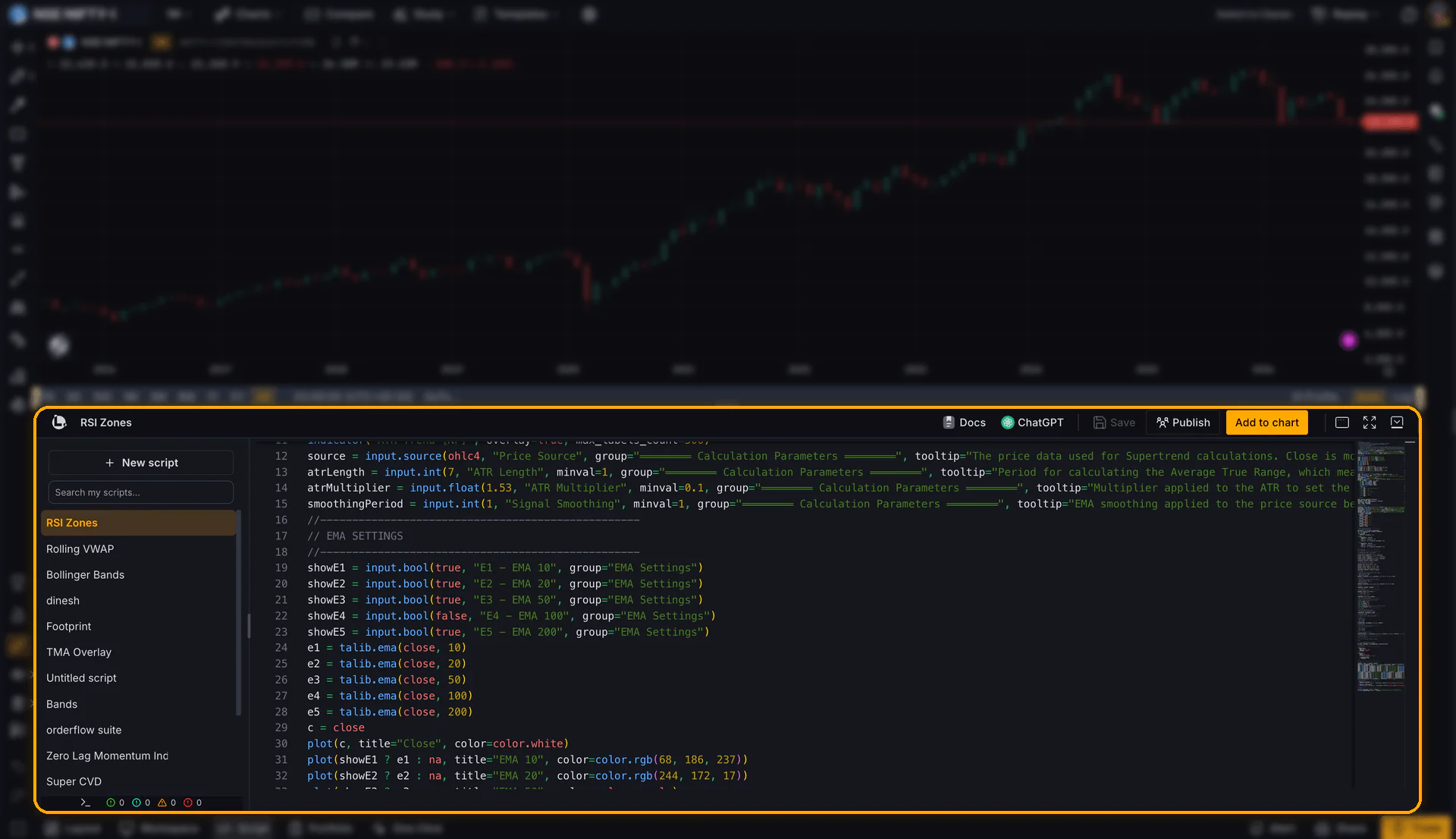
- Dock the Lipi Script Editor and Trading Journal, or open them as a new window.
More chart types, sessions and time scale options
New chart types
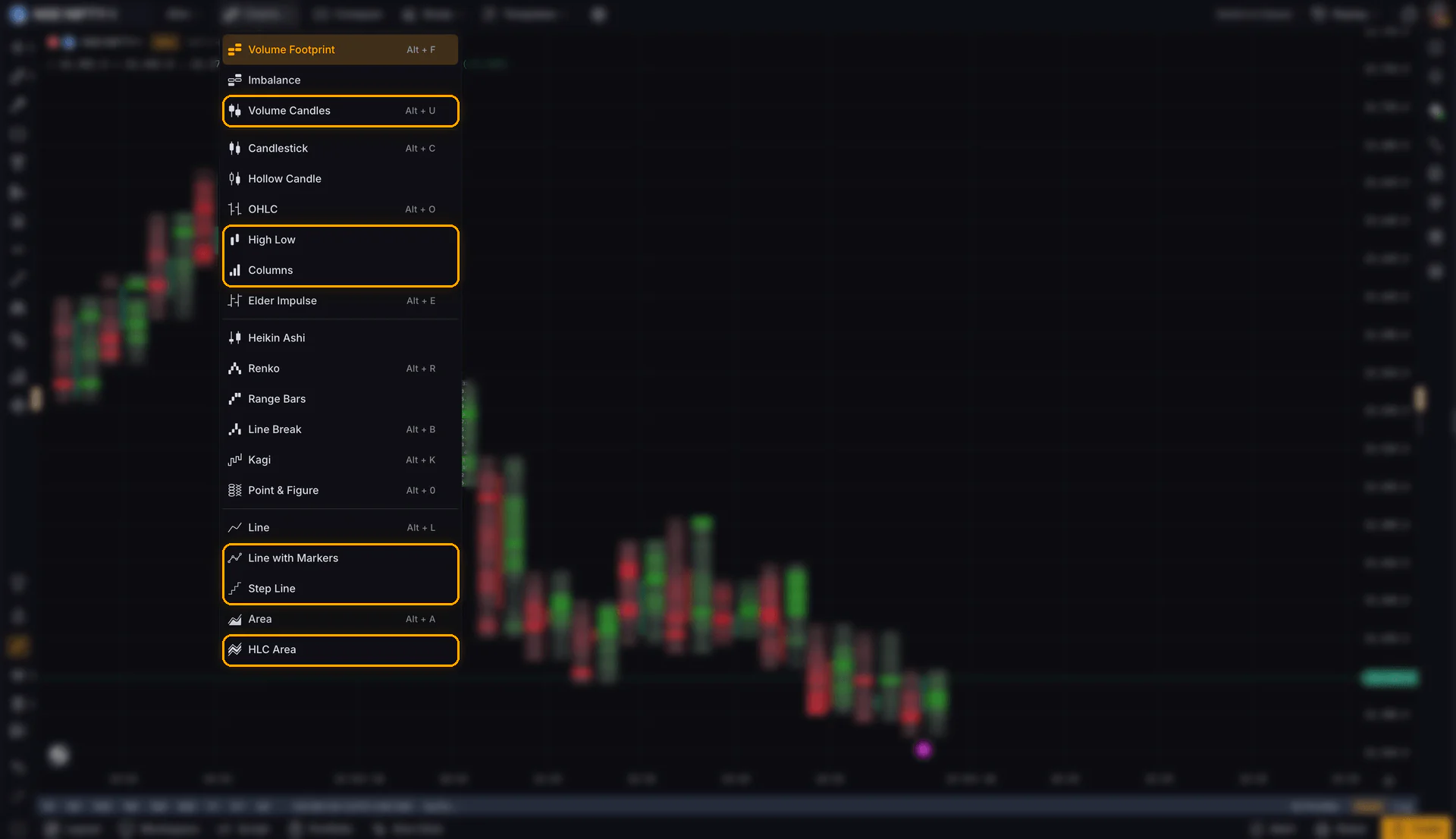
Volume Candles is now in the Charts menu, alongside High Low, Columns, Step Line, Line with Markers and HLC Area. Use Alt+U for Volume Candles. They sit with Volume Footprint, Imbalance, Renko, Kagi and the other chart types.
Custom session groups
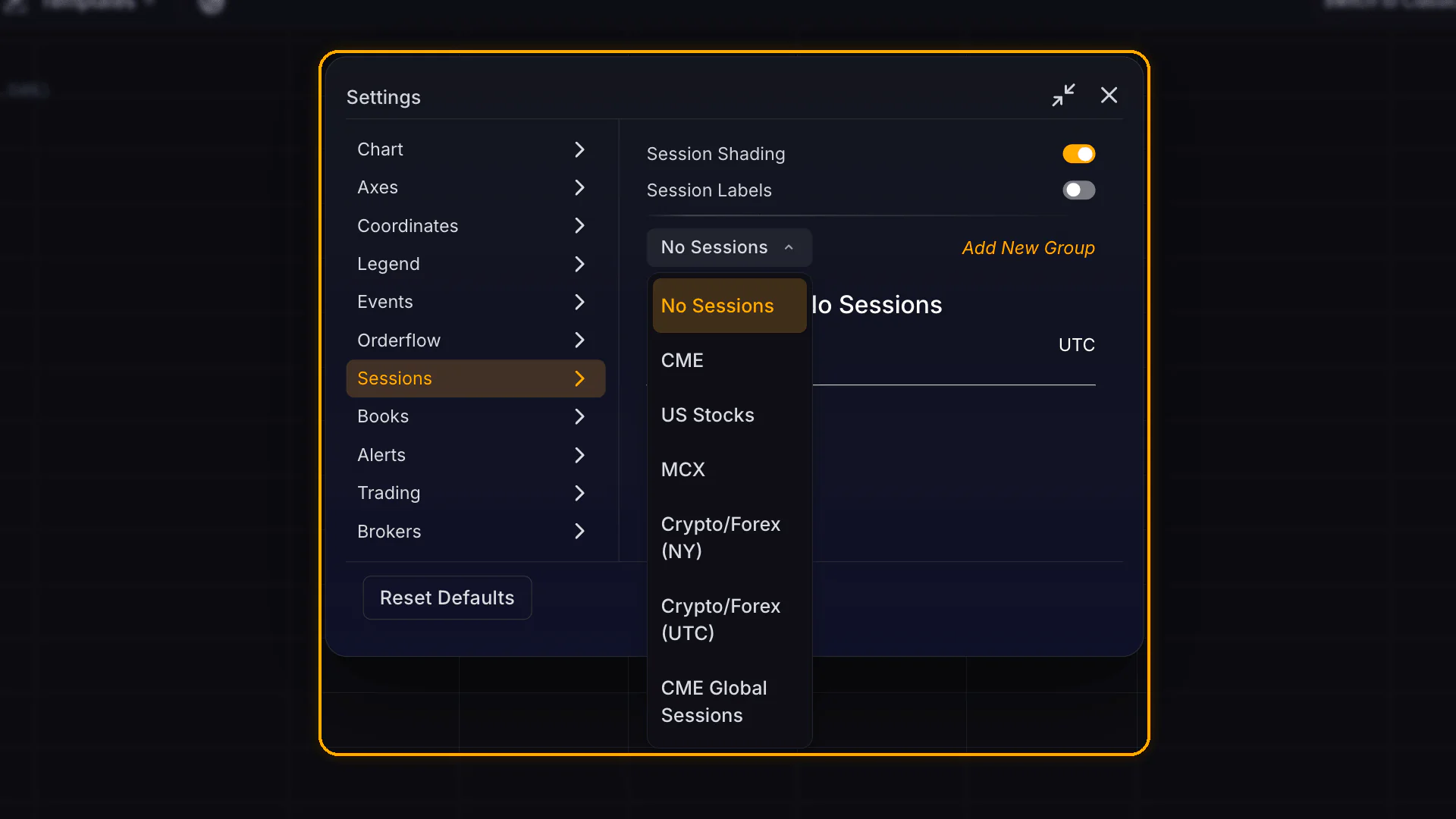
Create and apply named session groups in Settings > Sessions, with shading and labels. Market Profile and Volume Profile can follow a session group, which is useful for splitting Asia, London and New York.
Time scale formats
In Settings > Axes, you can now show the day of week on labels, choose a date format and switch between 12-hour and 24-hour time.
Navigation changes and Lipi V2
Some drawing controls, including Undo and Redo, are now in the bottom-left navigation. Ctrl+Z is the shortcut for Undo. In the bottom navigation, look for Workspace to access your saved layouts; this replaces the previous Save label. The full list is below.
| Control | Where to find it in V2 |
|---|---|
| Undo and Redo | Bottom-left navigation. Ctrl+Z is the shortcut for Undo. |
| Saved layouts | Workspace in the bottom navigation, which replaces the previous Save label. |
| Volume Footprint (previously Cluster charts) | Top of the Charts menu, or Alt+F. |
| Volume Candles | Charts menu, or Alt+U. |
| Classic terminal | Switch to Classic in the top bar. |
Lipi V2 is now live
Lipi V2 is live and adds arrays, drawing tools and strategy backtesting from the script editor.
In Terminal V2, the Lipi Script Editor can be docked under your chart or opened in its own window.
Try Terminal V2 today
Open Terminal V2 with the button below. Your layouts, templates and saved work remain available. If your account opens in Classic, use Switch to New Terminal in the top navigation; Switch to Classic is available in the same area.
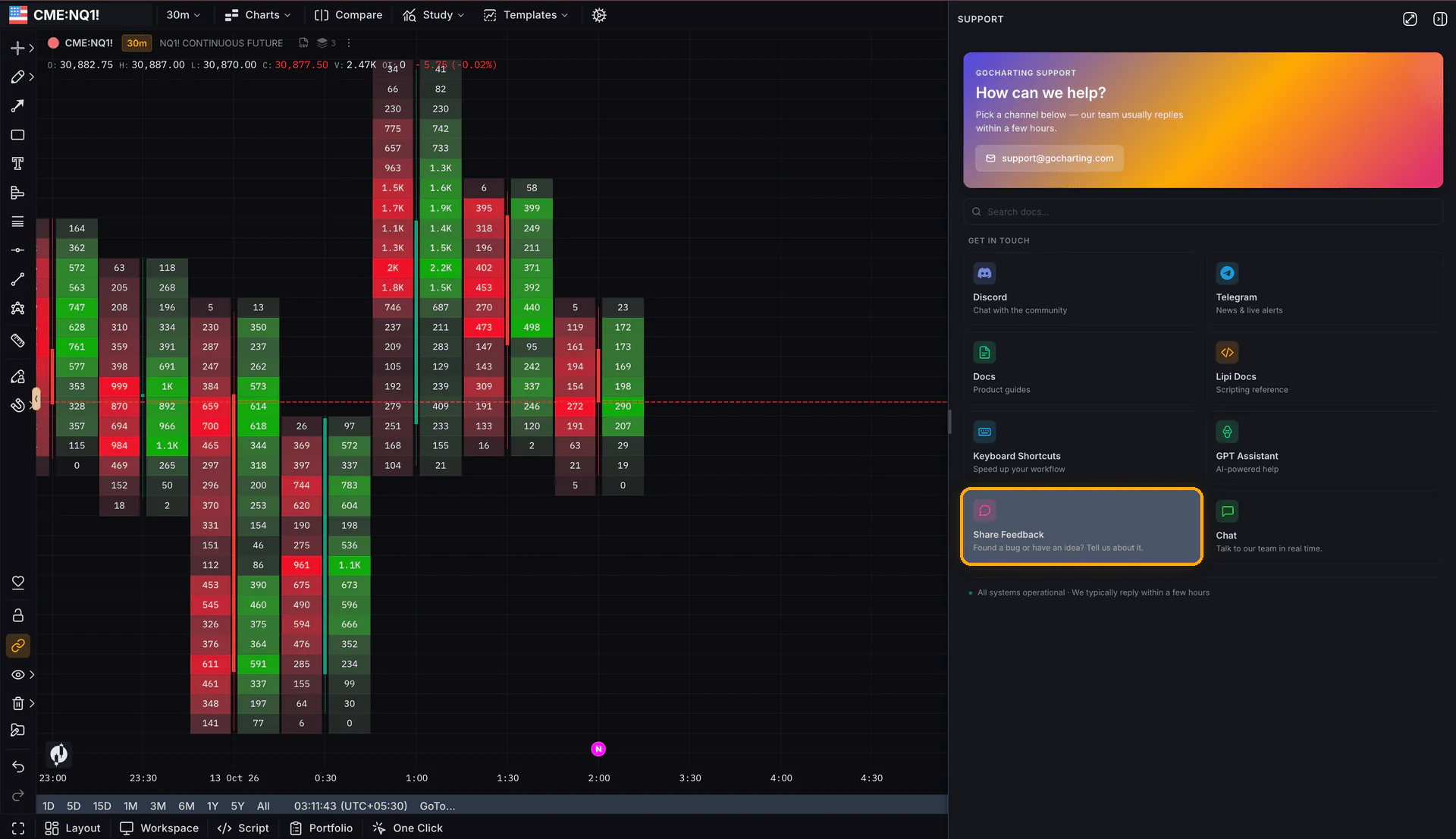
To send feedback on Terminal V2, open the Support panel in the top-right corner and select Share Feedback.