What Is Paper Trading? How to Practice With a Simulator

What Is Paper Trading?
Paper trading means practicing trades with virtual money in a simulated account. You can submit orders, manage positions and review simulated gains or losses without putting trading capital at risk.
Prices may use live, delayed or historical data, depending on the tool and your data access. Simulated profits cannot be withdrawn, and a paper order may fill differently from a live one. The term comes from recording hypothetical trades on paper. A manual paper trade records an assumed fill and result; a simulator tracks orders, positions and balances. Demo trading and virtual trading are related terms, though their features vary by provider.
How to Paper Trade: A Step-by-Step Guide
1. Choose a Simulator and a Supported Market
Choose a simulator that supports the instrument and order types you want to practice. Confirm whether quantities are entered as shares, contracts or another unit. Start with one instrument so you can follow its quotes, orders and positions without switching between markets.
2. Confirm the Account and Quote Status
Select the simulated account before opening an order ticket. Check its name, virtual balance and connection status so a practice order cannot be confused with an order routed to a live broker. Then check the quote timestamp and whether the data is live, delayed or historical. A simulated account does not automatically include real-time exchange data.
3. Set the Virtual Balance and Cost Assumptions
Use a virtual balance that reflects the scale of the account you intend to practice managing. Add commission assumptions where the simulator supports them. If it does not model a cost, record that allowance separately in your journal. Distinguish commissions from spread and slippage, and avoid deducting a cost twice.
4. Write the Entry, Size and Exit Before Submitting
Record the instrument, direction, quantity, entry condition and planned exit. A market order requests execution at the next price available under the simulator’s model. A buy limit sets the highest acceptable purchase price; a sell limit sets the lowest acceptable sale price. A limit order can remain unfilled. Treat any planned stop or reassessment level as part of the written exercise rather than assuming a price touch guarantees an exit.
5. Submit, Manage and Close the Practice Trade
Review the selected account, symbol, side, quantity and order type, then submit the simulated order. Read its status: submission is not confirmation of a fill. If it fills, check the position quantity and simulated execution price. To exit, close that position or submit the appropriate offsetting order for its remaining quantity. Confirm the exit filled and the position is flat. If an entry remains unfilled, cancel it and verify the canceled status; also check for any protective or exit orders left working.
6. Record the Result and Review the Decision
Log the actual simulated entry and exit fills, quantity and costs. Record unfilled orders, cancellations and losses as well as profitable trades. Compare the actions taken with the plan and retain the relevant order or trade record. Review whether the exercise followed the rules before judging it by profit alone.
A Simple Paper Trading Example
Suppose you are practicing a predefined entry rule on a hypothetical U.S. stock. Your written exercise calls for buying 10 shares at USD 100 and selling all 10 at USD 102. You also plan to reassess if the entry premise fails. These prices and costs are teaching assumptions, not current quotes or a GoCharting fee schedule. All amounts in this example are in U.S. dollars.
Enter a simulated buy limit for 10 shares at USD 100. The order may remain unfilled. For this example, assume the simulator reports a complete fill of 10 shares at exactly USD 100. Once that fill is confirmed, submit the planned sell limit for all 10 shares at USD 102.
Assume the sell order also fills completely at USD 102. The gain is USD 2 per share, giving gross profit of USD 20 on 10 shares. With an illustrative USD 1 entry cost and USD 1 exit cost, total costs are USD 2 and net profit is USD 18. Confirm that the position is closed and that no order remains working.
In a separate losing outcome, assume you close all 10 shares at a simulated fill of USD 98 instead. The loss is USD 2 per share, giving a gross loss of USD 20. Adding the same USD 2 in costs gives a net loss of USD 22. This is an alternative outcome, not another sale after the position has already closed at USD 102.
The arithmetic assumes complete fills at the stated prices. A simulator can use a different fill model, and live trading can involve partial fills, price changes and additional costs. Record the fills actually reported rather than replacing them with your intended prices.
| Instrument | Entry reason | Planned exit | Quantity | Actual simulated fills | Costs | Net result | Lesson |
|---|---|---|---|---|---|---|---|
| Hypothetical U.S. stock | Test a predefined entry rule at USD 100 | Sell at USD 102 or reassess if the premise fails | 10 shares | Buy 10 at USD 100; sell 10 at USD 102 | USD 2 total | USD 18 profit | Record whether the entry and exit followed the plan. |
Benefits of Paper Trading
Learn the Platform and Order Controls
Paper trading for beginners can start with placing, changing and canceling orders without putting trading capital at risk. It also helps traders find their account balance, order history and open positions. Experienced traders can use it to learn an unfamiliar platform or order type.
Rehearse a Defined Plan
A simulated account lets traders practice a consistent entry, position size and exit rule. They can observe whether they follow the plan under different conditions. The absence of real-money losses reduces financial pressure, but it also removes some of the emotions that affect live decisions.
Review Decisions With a Journal
Record why each order was placed, what filled and what happened afterward. Include missed trades, cancellations and losses. Compare the actions taken with the original plan, then examine where the plan or its execution needs work.
Paper Trading vs Live Trading
A simulator can display live market prices while modeling execution differently from a broker. Real-time quotes alone do not establish realistic fills. Compare the account, data and fill assumptions before using a simulated result to assess a trading plan.
| Factor | Paper trading | Live trading |
|---|---|---|
| Capital and profit | Uses virtual funds; gains cannot be withdrawn | Uses real capital; gains and losses affect the account |
| Fills and liquidity | A simulator models fills and may simplify queue position, partial fills or market impact | Execution depends on available liquidity and the order’s place in the market |
| Fees, spread and slippage | May use assumed costs or omit some costs | Actual charges and execution prices affect the result |
| Emotional pressure | No real-money loss from a simulated position | Financial exposure can change decisions under pressure |
| Account and market restrictions | Available instruments and account rules depend on the simulator | Broker, exchange, account and regulatory requirements apply |
How to Make Practice Useful
Keep the virtual balance, position-sizing rule and available cost assumptions consistent across sessions. Record every trade, including losses, and compare planned actions with submitted orders and simulated fills. Review rule-following and drawdowns alongside profit. Repeatedly resetting a losing account hides decisions worth examining.
No number of days or trades proves readiness for live trading. Look for consistent record-keeping and rule-following across different conditions, while examining how the simulator’s execution differs from the market you intend to trade. Simulated results do not establish future live results.
Try Paper Trading in GoCharting
GoCharting Sim Trader provides Browser and Server simulation options. This walkthrough uses GoCharting Sim (Browser) in Terminal V2. The guide describes Browser simulation data as stored locally. Simulator access and live exchange data are separate, so confirm your instrument and data entitlement before practicing.
1. Select a Simulated Connection
Open the broker control in the right sidebar. Under CONNECT TO BROKERS, select Sim Trader BROWSER and sign in if prompted. Confirm GOCHARTING SIM (BROWSER) and “The Broker is Connected” before opening its Trade panel. Open Portfolio to review the simulated account records.
2. Prepare the Practice Order
Open CME:ESZ26, the December 2026 E-mini S&P 500 contract. This capture uses one-minute candlesticks, RTH and ET displayed as UTC-05:00 on Nov. 4, 2026. In the Trading Panel, select MARKET and set Quantity to 1. Review the contract, side and simulated connection before submitting.
The Browser connection describes itself as a zero-commission simulator with unlimited funds. The ticket’s displayed USD 0.00 balance is not used here as a practice-budget limit. Keep your chosen budget and any additional cost assumptions in your journal; the USD 1 costs in the stock example above are illustrative.
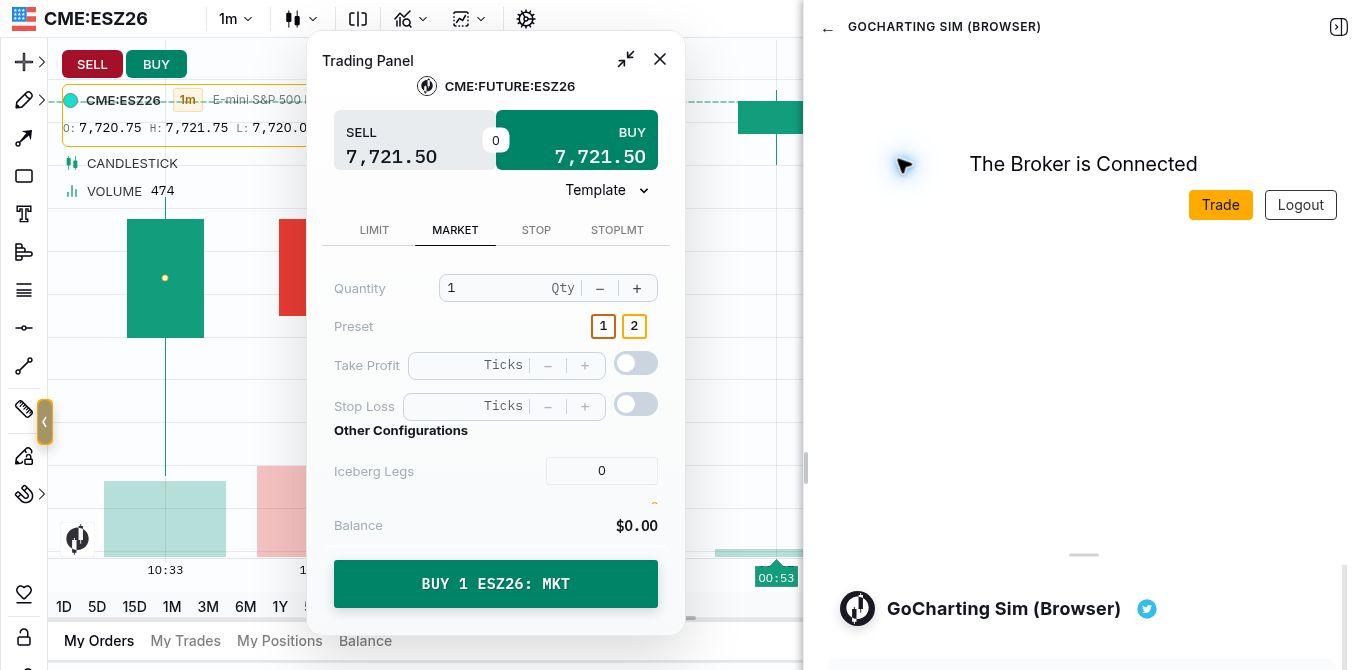
Captured Nov. 4, 2026: GoCharting Sim (Browser) is connected, with a market order prepared for one CME:ESZ26 contract. The chart uses one-minute candles, RTH and ET (UTC-05:00). Quote status: live CME chart data, observed updating during capture. Order execution is simulated.
3. Submit and Close the Practice Position
Submit the simulated buy, then check My Orders for FILLED status before treating it as a position. In this exercise, one ESZ26 contract filled at 7,723.00. My Positions showed the open quantity. To close it, select Exit All (1) in that simulated account and confirm the exit. The sell filled at 7,724.25. Verify that My Positions shows quantity 0 and that no unwanted order remains working.
4. Check the Execution Record
My Trades records the quantity, side, order type and fill price for both executions. In this capture, its Time column uses UTC: the buy at 15:37:15 and sell at 15:37:41 correspond to 10:37:15 a.m. and 10:37:41 a.m. ET. The chart uses ET. Retain the actual fills in your journal, separately from the hypothetical stock example.
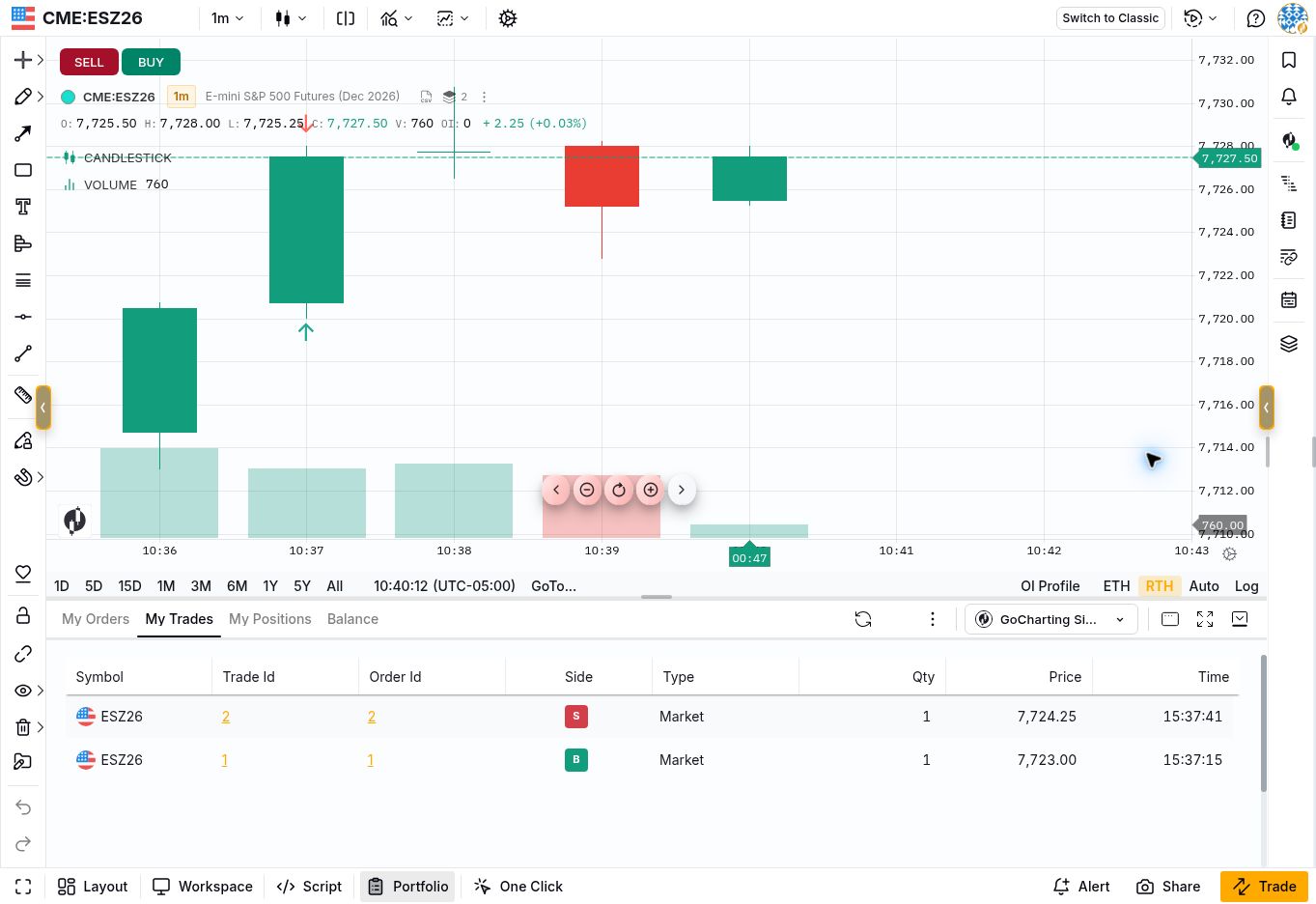
Captured Nov. 4, 2026: My Trades records a simulated ESZ26 buy of one contract at 7,723.00 and a matching sell at 7,724.25. The closed position was separately verified at quantity 0. Quote status: live CME chart data; all executions shown are simulated. Chart: one-minute candles, RTH, ET (UTC-05:00). The record’s Time column is UTC.
FAQ
Can You Make Real Money From Paper Trading?
Ordinary paper trading uses virtual funds, and its simulated profits cannot be withdrawn. Any separate competition prize or promotion has its own terms and is different from the P&L in a practice account.
Is Paper Trading Free?
Some simulators provide free access, while others require a subscription or charge for particular tools or market data. GoCharting’s published comparison lists simulated paper trading in both Free and Premium. Check the selected market’s data access separately; a free simulator does not automatically provide every exchange’s real-time feed.
Is Paper Trading the Same as Backtesting?
Backtesting applies trading rules to historical data to examine simulated results. Paper trading describes practicing orders and managing a virtual account, often while new market data arrives. Historical replay can also support practice, so identify which data and execution method the tool uses.
How Long Should I Paper Trade?
There is no universal number of days or trades that demonstrates readiness. Practice long enough to examine rule-following, costs, losses and execution differences across relevant conditions. A profitable simulated period alone does not establish that the same decisions will produce live profits.
Practice placing, managing and reviewing simulated orders with GoCharting Sim Trader. Keep your trade log beside the platform and check the account and quote status before each exercise.